Apply a discount or add a note to a selected item before payment.
Apply a discount or add a note to a selected item before payment.Where: POS device → sales screen → item price arrow
1
Expand the item controls
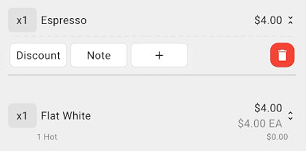
Select the arrow beside the item price in the order panel. The Discount and Note controls appear.
Expanded item row showing Discount and Note controls
2
Apply a discount
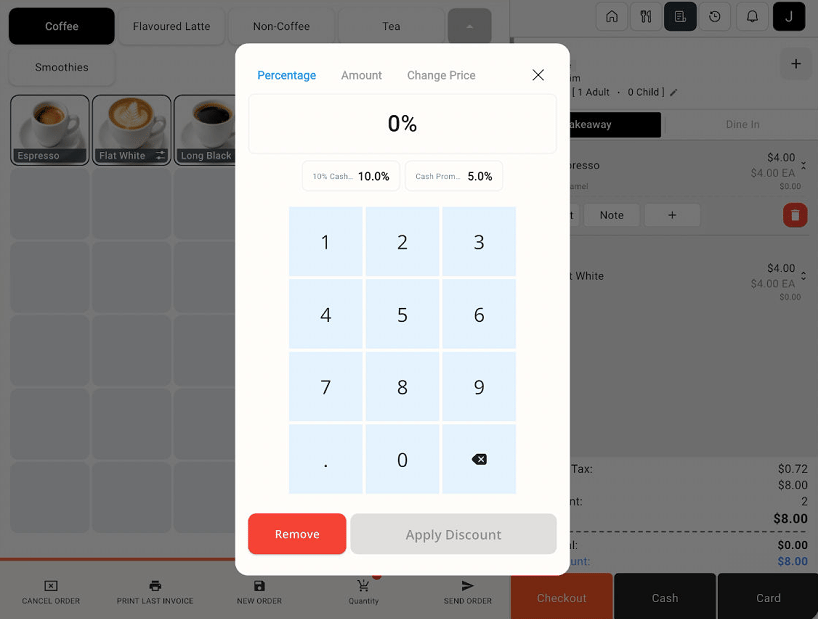
Select Discount. Choose a pre-configured discount or enter a custom percentage on the Percentage tab, then select Apply Discount.
Item discount window with presets, percentage keypad, and Apply Discount
3
Check the result
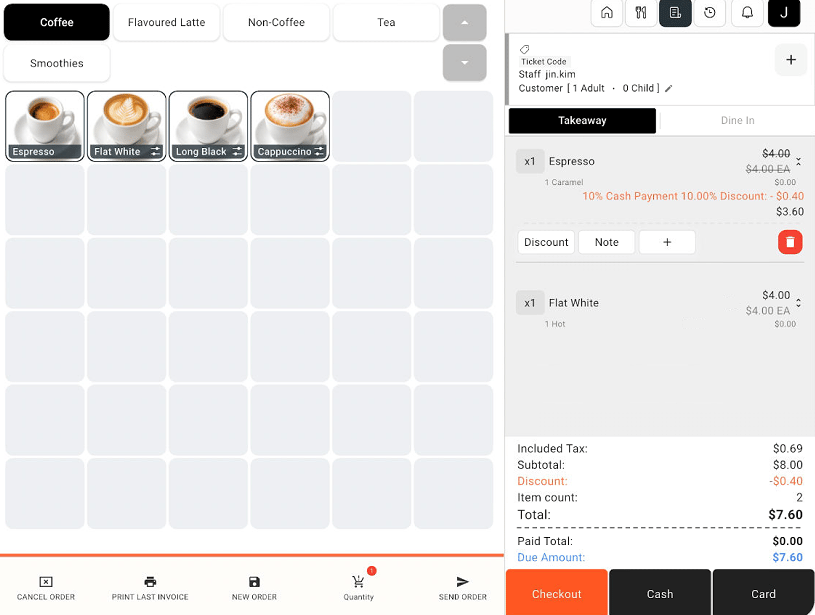
Review the discount and updated item price in the order panel. The example shows a 10% discount reducing an item from 4.00to3.60, with the order total updated accordingly.
Order panel showing an applied item discount and updated total
4
Add an item note
Select Note on the relevant item. Enter the note and apply it using the controls shown in the note window.
An item discount applies to the selected item. Review order-level adjustments separately on the Checkout screen.