
1
Select Cancel Order
Review the current order, then select Cancel Order at the bottom-left of the sales screen.
2
Enter the reason
In the Cancel Order window, explain why the order is being cancelled, such as an incorrect order or a customer request.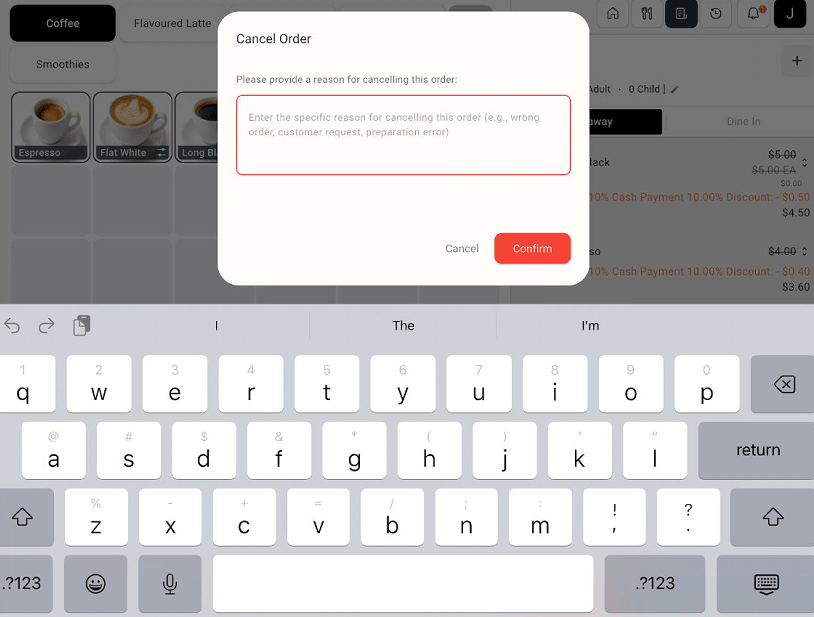
Cancel Order dialog with a reason field, Cancel, and Confirm
3
Confirm the cancellation
Select Confirm to proceed. Select Cancel to close the dialog without confirming the cancellation.