
Deactivate Store
1
Select the store
Choose the store you intend to deactivate and open Store Settings.
2
Open Danger Zone
Expand Danger Zone and find Deactivate Store.
3
Review the consequences
The source screen says Delete the store from the store lists and Close all of store’s account information. Check that this action is appropriate for your location.
4
Deactivate the store
Select Deactivate only when you are ready to proceed. Read and respond to any further prompts shown by POBLE.
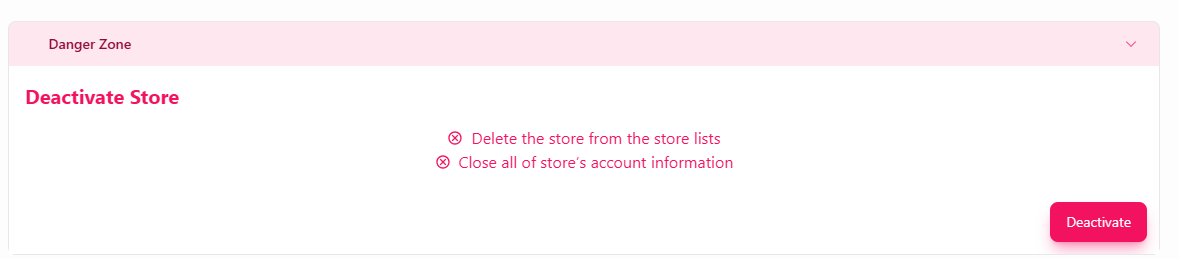
Use the Danger Zone controls to deactivate a store.