
Set Role Permissions
1
Open Roles
Select Roles from the company sidebar.
2
Expand a role
Open the role you want to configure. The source screen shows Franchise Manager, Shop Manager, Shop Owner, and Staff.
3
Choose permitted actions
Review each permission category and select the required View, Edit, and Delete actions where available. The source example includes employee, menu management, royalty management, and sales report categories.
4
Save the role
Select Save after reviewing your changes.
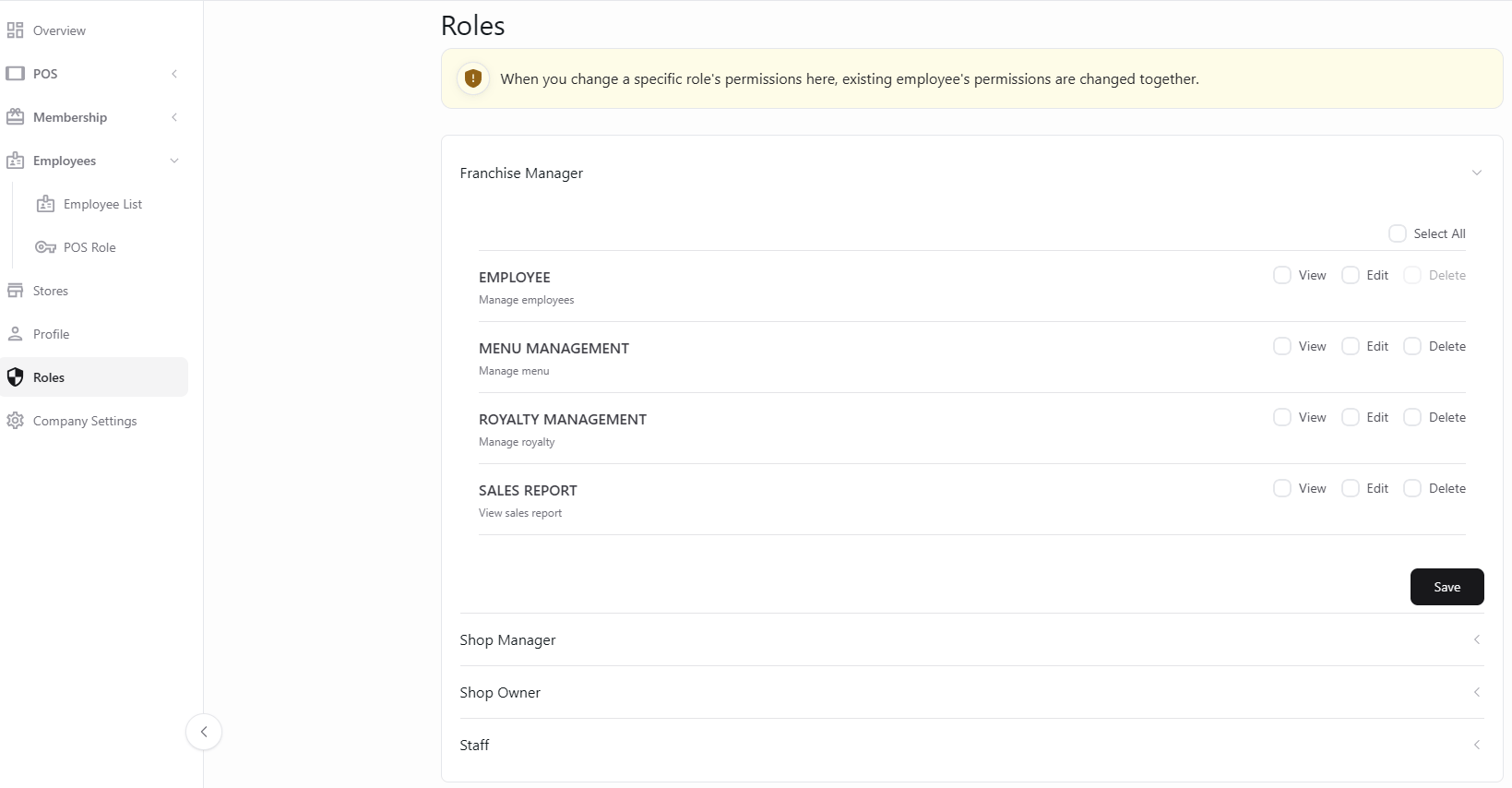
Configure the actions each staff role can perform.