> ## Documentation Index
> Fetch the complete documentation index at: https://docs.poble.com.au/llms.txt
> Use this file to discover all available pages before exploring further.
# 使用销售界面
> 浏览分类、选择菜单商品并检查当前订单。
浏览分类、选择菜单商品并检查当前订单。
**位置:** POS 设备 → 销售界面
选择菜单顶部的分类,例如 **Coffee**。可用商品将显示在下方。
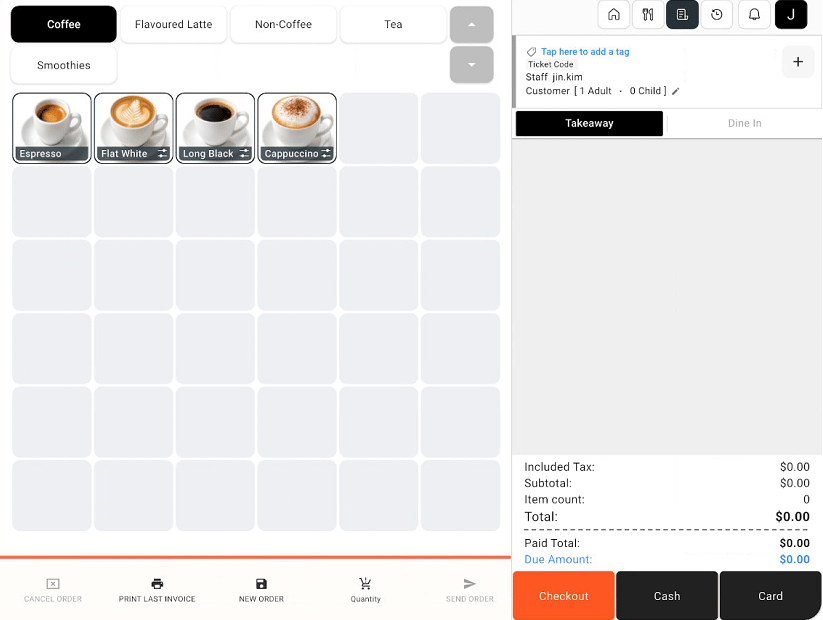 选择顾客需要的商品。如果出现选项窗口,请选择相关选项并选择 **Add To Cart**。
检查右侧订单面板中的商品。付款前请核对数量、价格和总额。
请在完成付款前修改商品、应用折扣或添加备注。
## 相关指南
* [选择商品选项](/zh/poble-manual/sales-payments/select-item-options)
* [修改数量与移除商品](/zh/poble-manual/sales-payments/change-quantity-void)
* [结账与付款](/zh/poble-manual/sales-payments/checkout-payment)
This documentation is built and hosted on [Mintlify](https://mintlify.com), a developer documentation platform.
选择顾客需要的商品。如果出现选项窗口,请选择相关选项并选择 **Add To Cart**。
检查右侧订单面板中的商品。付款前请核对数量、价格和总额。
请在完成付款前修改商品、应用折扣或添加备注。
## 相关指南
* [选择商品选项](/zh/poble-manual/sales-payments/select-item-options)
* [修改数量与移除商品](/zh/poble-manual/sales-payments/change-quantity-void)
* [结账与付款](/zh/poble-manual/sales-payments/checkout-payment)
This documentation is built and hosted on [Mintlify](https://mintlify.com), a developer documentation platform.