> ## Documentation Index
> Fetch the complete documentation index at: https://docs.poble.com.au/llms.txt
> Use this file to discover all available pages before exploring further.
# 结账与付款
> 检查订单并选择适当的付款控件。
检查订单并选择适当的付款控件。
**位置:** POS 设备 → 销售界面 → Checkout / Cash / Card
检查订单面板中的商品、所选选项、数量、折扣和总额。
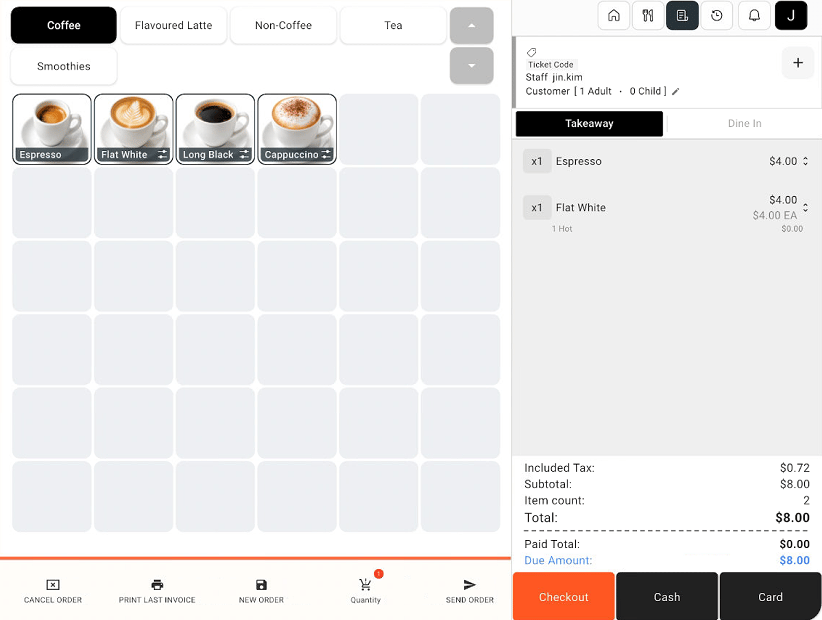 选择 **Cash** 或 **Card** 使用相应付款方式;如需先查看结账界面,请选择 **Checkout**。
在 **Checkout** 中检查摘要和应付余额。需要调整时,使用界面提供的折扣、现金促销、附加费或自定义调整控件。继续前请检查调整后的总额。
选择 **Cash** 或 **Card** 使用相应付款方式;如需先查看结账界面,请选择 **Checkout**。
在 **Checkout** 中检查摘要和应付余额。需要调整时,使用界面提供的折扣、现金促销、附加费或自定义调整控件。继续前请检查调整后的总额。
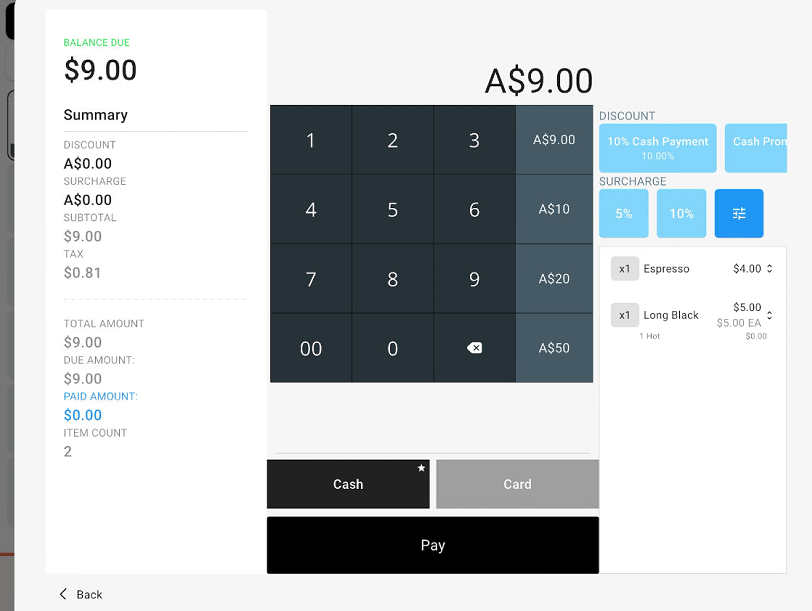 在结账界面选择 **Cash** 或 **Card**,检查金额,然后选择 **Pay**。按 POBLE 或已连接终端的付款提示操作。
**Checkout** 用于打开订单检查和付款界面,并不是单独的付款方式。
## 相关指南
* [应用商品折扣与添加备注](/zh/poble-manual/sales-payments/item-discounts-notes)
* [Tyro 集成](/zh/integrations/tyro)
* [Linkly 集成](/zh/integrations/linkly)
This documentation is built and hosted on [Mintlify](https://mintlify.com), a developer documentation platform.
在结账界面选择 **Cash** 或 **Card**,检查金额,然后选择 **Pay**。按 POBLE 或已连接终端的付款提示操作。
**Checkout** 用于打开订单检查和付款界面,并不是单独的付款方式。
## 相关指南
* [应用商品折扣与添加备注](/zh/poble-manual/sales-payments/item-discounts-notes)
* [Tyro 集成](/zh/integrations/tyro)
* [Linkly 集成](/zh/integrations/linkly)
This documentation is built and hosted on [Mintlify](https://mintlify.com), a developer documentation platform.