> ## Documentation Index
> Fetch the complete documentation index at: https://docs.poble.com.au/llms.txt
> Use this file to discover all available pages before exploring further.
# 添加与编辑门店菜单商品
> 管理单家门店的菜单分类和商品。
管理单家门店的菜单分类和商品。
**位置:** 管理后台 → 所选门店 → POS → Menu Settings
打开所选门店的 **Menu Settings**,选择要管理的分类。
选择 **Create Menu Item**,填写商品名称、价格、分类等所需信息,并使用表单控件完成创建。
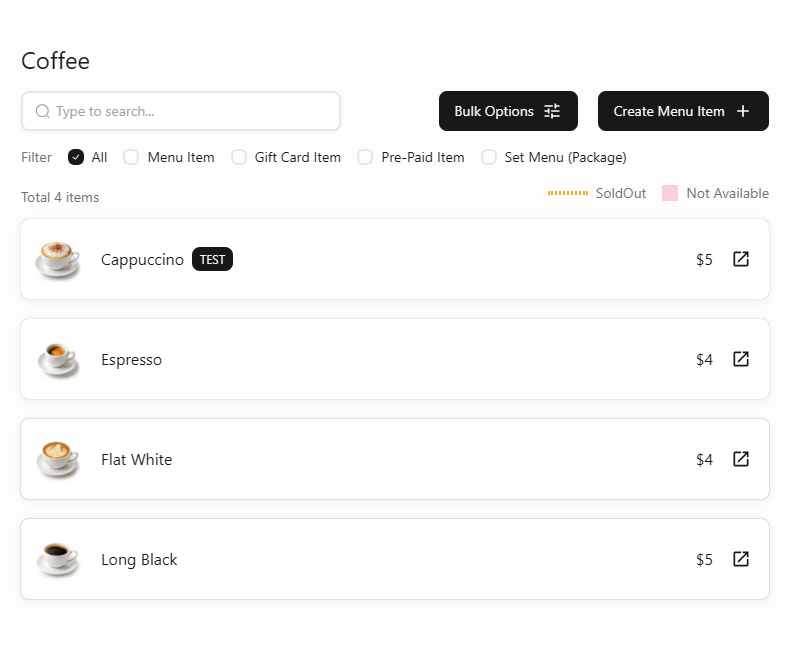 从列表打开商品,按需修改名称、价格、分类等设置。检查并应用所选门店的更改。
要修改分类本身,请打开名称旁的 **…** 菜单并选择 **Edit Category**。
从列表打开商品,按需修改名称、价格、分类等设置。检查并应用所选门店的更改。
要修改分类本身,请打开名称旁的 **…** 菜单并选择 **Edit Category**。
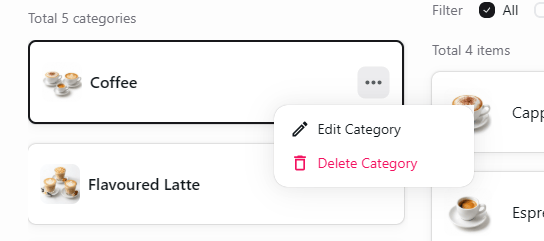 使用 **Edit Category** 修改分类;修改商品信息时,请打开相应商品。
## 相关指南
* [创建门店菜单分类](/zh/poble-manual/menu-management/store/create-categories)
* [添加与编辑公司菜单商品](/zh/poble-manual/menu-management/company/manage-items)
This documentation is built and hosted on [Mintlify](https://mintlify.com), a developer documentation platform.
使用 **Edit Category** 修改分类;修改商品信息时,请打开相应商品。
## 相关指南
* [创建门店菜单分类](/zh/poble-manual/menu-management/store/create-categories)
* [添加与编辑公司菜单商品](/zh/poble-manual/menu-management/company/manage-items)
This documentation is built and hosted on [Mintlify](https://mintlify.com), a developer documentation platform.