> ## Documentation Index
> Fetch the complete documentation index at: https://docs.poble.com.au/llms.txt
> Use this file to discover all available pages before exploring further.
# 设置打印机映射
> 管理打印机组,将菜单商品发送至正确的打印机。
管理打印机组,将菜单商品发送至正确的打印机。
**位置:** POS 设备 → Menu Management → Menu Setup → Printer Mapping
在 **Menu Setup** 中选择 **Printer Mapping**,打开 **Manage Printer Groups**。
选择 **Create Group**,在 **Create Printer Category** 表单中填写 **Name** 和 **Description**。
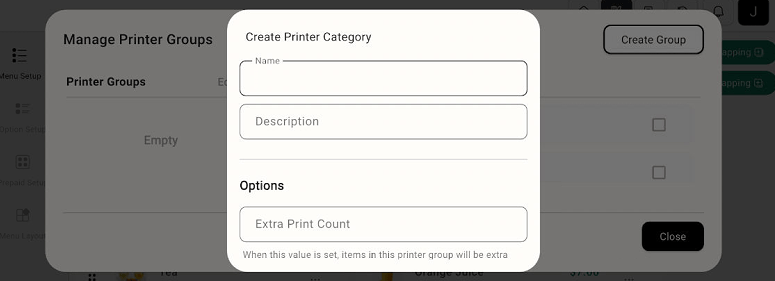 需要额外打印时,请查看 **Extra Print Count**。使用表单控件完成组设置。
检查可用的组和分配控件,确保菜单商品发送至预期的打印机。
Printer Mapping 用于管理打印机组和分配。硬件与连接设置请使用 POS 中的打印机配置。
## 相关指南
* [在 POS 上创建菜单商品](/zh/poble-manual/menu-management/pos/manage-items)
This documentation is built and hosted on [Mintlify](https://mintlify.com), a developer documentation platform.
需要额外打印时,请查看 **Extra Print Count**。使用表单控件完成组设置。
检查可用的组和分配控件,确保菜单商品发送至预期的打印机。
Printer Mapping 用于管理打印机组和分配。硬件与连接设置请使用 POS 中的打印机配置。
## 相关指南
* [在 POS 上创建菜单商品](/zh/poble-manual/menu-management/pos/manage-items)
This documentation is built and hosted on [Mintlify](https://mintlify.com), a developer documentation platform.