> ## Documentation Index
> Fetch the complete documentation index at: https://docs.poble.com.au/llms.txt
> Use this file to discover all available pages before exploring further.
# 创建 POBLE 账户
> 输入公司和经营信息,开始设置 POBLE。
从 POBLE 设置流程的 **Create company** 界面开始。请准备经营信息和主要联系方式。
## 创建 POBLE 账户
填写 **Australian Business Number (ABN)**、**Business Name** 和 **Business Id**。
使用符合业务的标识符。设置界面说明,该值是公司的唯一标识符,也会用作会员网址的子域名。
填写 **Address**、**City**、**State**、**Postcode**、**Primary Email** 和 **Primary Contact**。
阅读 **Terms and Conditions**。如同意,请勾选同意框,然后选择 **Next**。
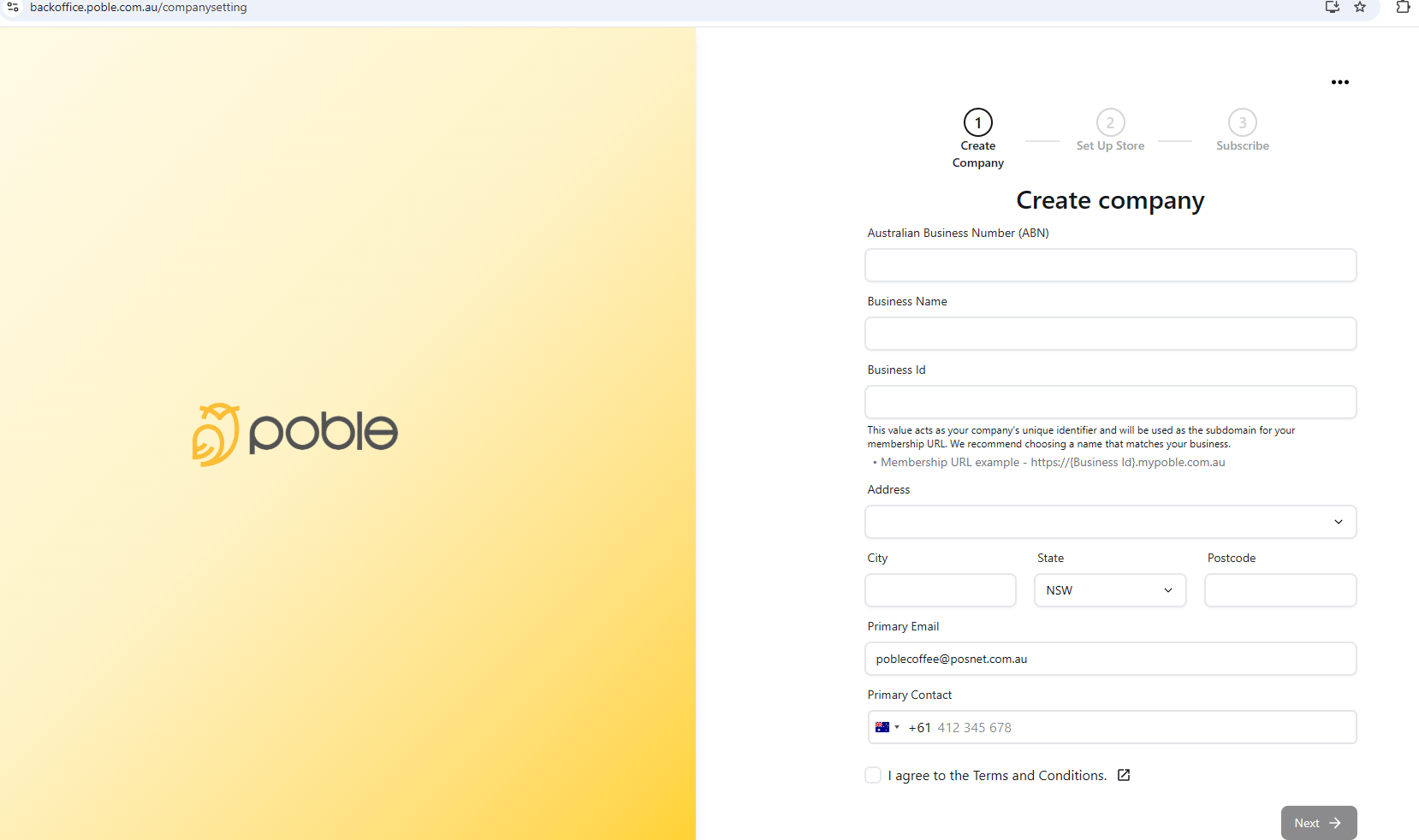 客户可能会在会员网址中看到 Business Id,请在继续前仔细检查。
## 相关指南
* [设置门店](/zh/poble-manual/getting-started/set-up-your-store)
This documentation is built and hosted on [Mintlify](https://mintlify.com), a developer documentation platform.
客户可能会在会员网址中看到 Business Id,请在继续前仔细检查。
## 相关指南
* [设置门店](/zh/poble-manual/getting-started/set-up-your-store)
This documentation is built and hosted on [Mintlify](https://mintlify.com), a developer documentation platform.