> ## Documentation Index
> Fetch the complete documentation index at: https://docs.poble.com.au/llms.txt
> Use this file to discover all available pages before exploring further.
# 添加标志与横幅
> 上传用于页眉和登录页面的公司品牌图片。
在 **Company Settings** 的 **Business** 选项卡中管理公司标志和横幅。
## 添加标志与横幅
打开 **Company Settings → Business**,找到 **Images**。
使用 **Logo Image** 下的上传控件。界面要求图片比例为 **1:1**,标志显示在页眉左上角。
使用 **Banner Image** 下的上传控件。界面要求图片比例为 **3:1**,横幅用于登录页面。
检查两张图片的预览,并使用页面上的控件应用更改。
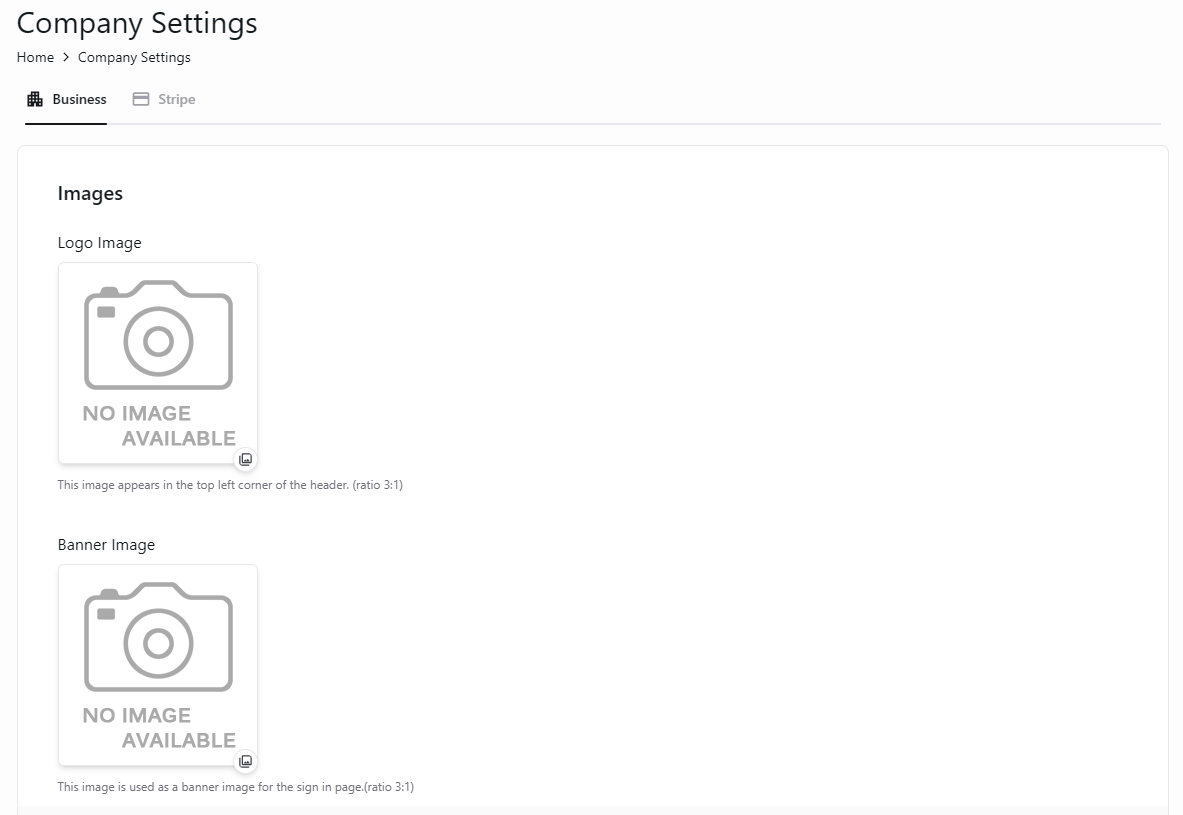 请使用正方形标志和宽幅横幅,以符合设置中显示的比例。
## 相关指南
* [更新公司信息](/zh/poble-manual/company-settings/update-company-details)
This documentation is built and hosted on [Mintlify](https://mintlify.com), a developer documentation platform.
请使用正方形标志和宽幅横幅,以符合设置中显示的比例。
## 相关指南
* [更新公司信息](/zh/poble-manual/company-settings/update-company-details)
This documentation is built and hosted on [Mintlify](https://mintlify.com), a developer documentation platform.