> ## Documentation Index
> Fetch the complete documentation index at: https://docs.poble.com.au/llms.txt
> Use this file to discover all available pages before exploring further.
# Deactivate Store
> Use the Danger Zone controls to deactivate a store.
The Notion guide describes deactivation for a store that is closed or no longer in use. Review the on-screen warning carefully before proceeding.
## Deactivate Store
Choose the store you intend to deactivate and open **Store Settings**.
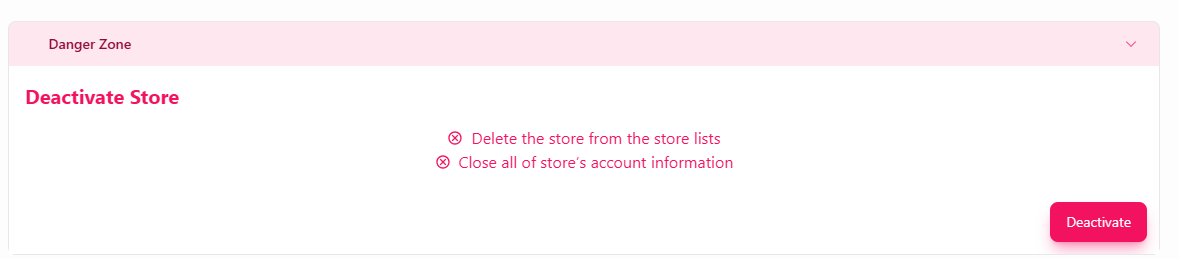
Expand **Danger Zone** and find **Deactivate Store**.
The source screen says **Delete the store from the store lists** and **Close all of store’s account information**. Check that this action is appropriate for your location.
Select **Deactivate** only when you are ready to proceed. Read and respond to any further prompts shown by POBLE.
 The source does not explain data retention, billing effects, or reactivation. Confirm those details with POBLE support before relying on deactivation for a temporary closure.
## Related guides
* [Add a closure message](/poble-manual/store-settings/business-hours-message)
* [Manage company stores](/poble-manual/company-settings/manage-stores)
This documentation is built and hosted on [Mintlify](https://mintlify.com), a developer documentation platform.
The source does not explain data retention, billing effects, or reactivation. Confirm those details with POBLE support before relying on deactivation for a temporary closure.
## Related guides
* [Add a closure message](/poble-manual/store-settings/business-hours-message)
* [Manage company stores](/poble-manual/company-settings/manage-stores)
This documentation is built and hosted on [Mintlify](https://mintlify.com), a developer documentation platform.