> ## Documentation Index
> Fetch the complete documentation index at: https://docs.poble.com.au/llms.txt
> Use this file to discover all available pages before exploring further.
# Business Hours
> Set opening, closing, and break times for each day.
Set the regular trading hours for the selected store in **Store Settings**.
## Business Hours
Choose the store from the company/store selector, then select **Store Settings**.
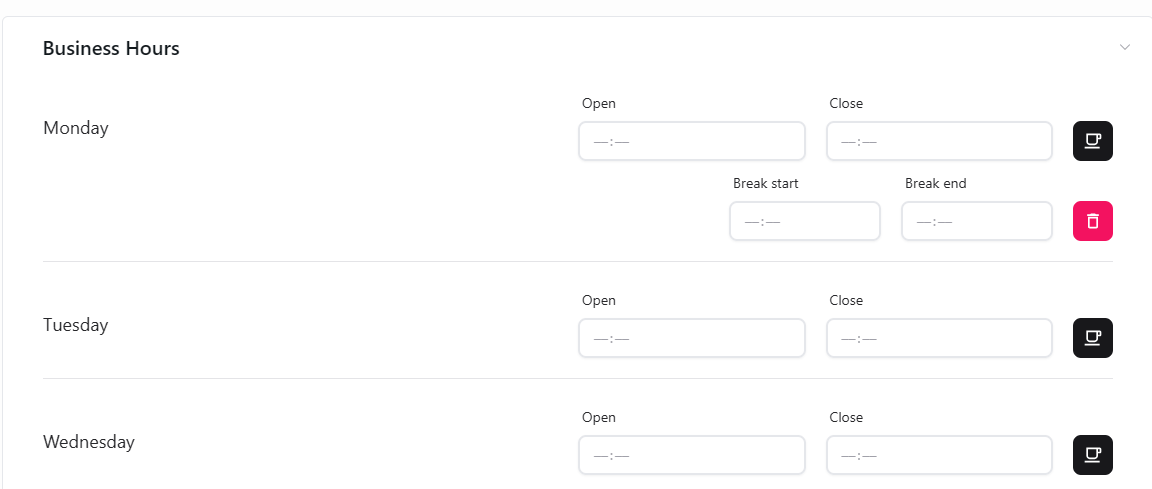
Expand **Business Hours**. Enter the **Open** and **Close** times for each day you need to configure.
Use the break control beside the day to add **Break start** and **Break end** times. Use the delete control if a listed break is no longer needed.
Check the daily hours and break times, then apply your changes using the controls available on the page.
 Use a **Business Hours Message** to explain public holiday hours, special trading hours, or a temporary closure.
## Related guides
* [Add a business hours message](/poble-manual/store-settings/business-hours-message)
This documentation is built and hosted on [Mintlify](https://mintlify.com), a developer documentation platform.
Use a **Business Hours Message** to explain public holiday hours, special trading hours, or a temporary closure.
## Related guides
* [Add a business hours message](/poble-manual/store-settings/business-hours-message)
This documentation is built and hosted on [Mintlify](https://mintlify.com), a developer documentation platform.