> ## Documentation Index
> Fetch the complete documentation index at: https://docs.poble.com.au/llms.txt
> Use this file to discover all available pages before exploring further.
# Use the Sales Screen
> Browse categories, select menu items, and review the current order.
Browse categories, select menu items, and review the current order.
**Where:** POS device → sales screen
Select a category at the top of the menu, such as **Coffee**. The available items appear below.
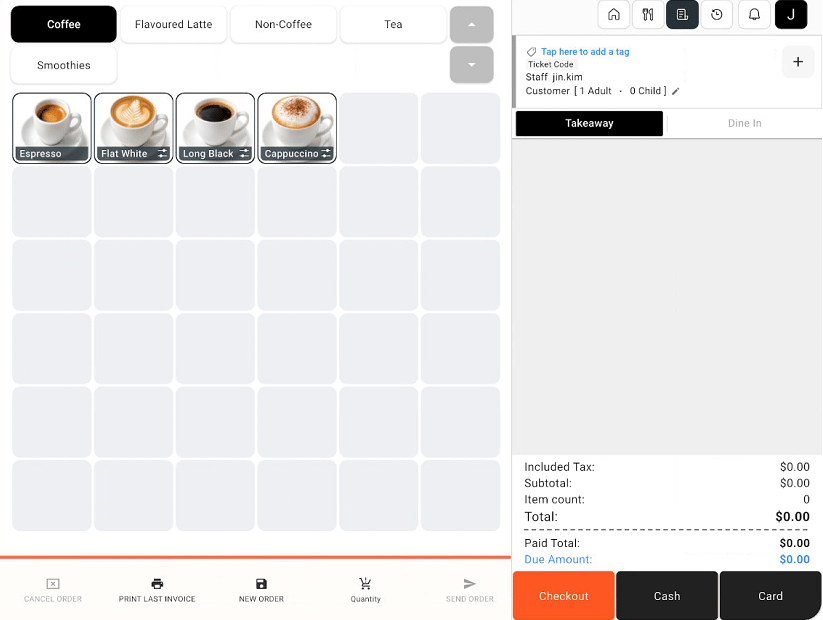 Select the item the customer wants. If an options window appears, choose the relevant options and select **Add To Cart**.
Check the items in the order panel on the right. Review quantities, prices, and the total before proceeding to payment.
Make any item changes, discounts, or notes before completing payment.
## Related guides
* [Select item options](/poble-manual/sales-payments/select-item-options)
* [Change quantities or void an item](/poble-manual/sales-payments/change-quantity-void)
* [Checkout and payment](/poble-manual/sales-payments/checkout-payment)
This documentation is built and hosted on [Mintlify](https://mintlify.com), a developer documentation platform.
Select the item the customer wants. If an options window appears, choose the relevant options and select **Add To Cart**.
Check the items in the order panel on the right. Review quantities, prices, and the total before proceeding to payment.
Make any item changes, discounts, or notes before completing payment.
## Related guides
* [Select item options](/poble-manual/sales-payments/select-item-options)
* [Change quantities or void an item](/poble-manual/sales-payments/change-quantity-void)
* [Checkout and payment](/poble-manual/sales-payments/checkout-payment)
This documentation is built and hosted on [Mintlify](https://mintlify.com), a developer documentation platform.