> ## Documentation Index
> Fetch the complete documentation index at: https://docs.poble.com.au/llms.txt
> Use this file to discover all available pages before exploring further.
# Apply Item Discounts & Add Notes
> Apply a discount or add a note to a selected item before payment.
Apply a discount or add a note to a selected item before payment.
**Where:** POS device → sales screen → item price arrow
Select the arrow beside the item price in the order panel. The **Discount** and **Note** controls appear.
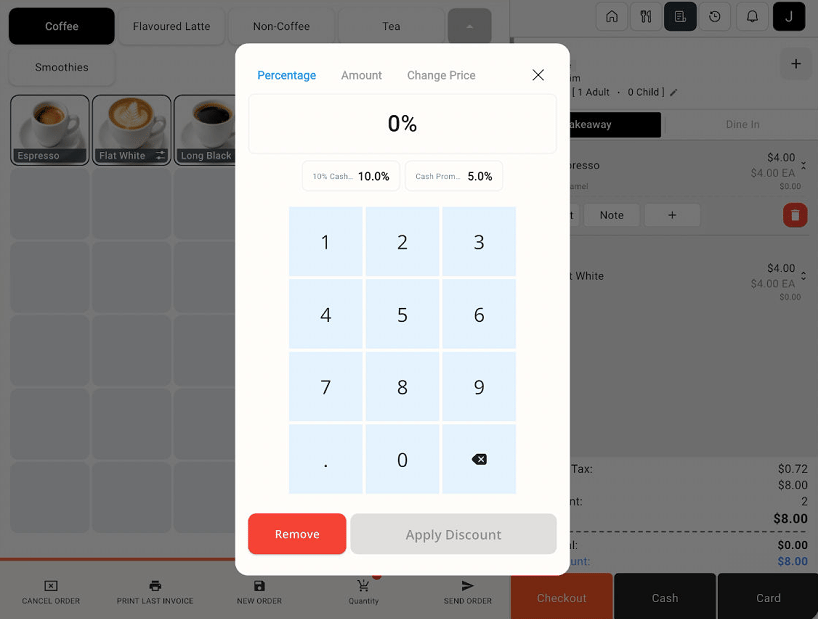
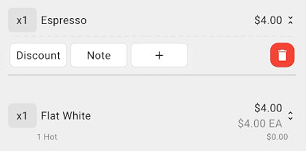 Select **Discount**. Choose a pre-configured discount or enter a custom percentage on the **Percentage** tab, then select **Apply Discount**.
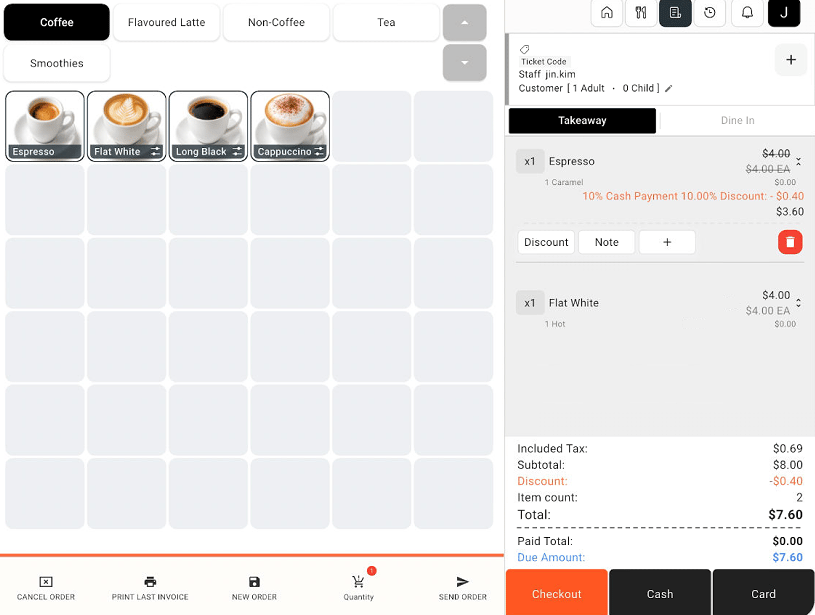
 Review the discount and updated item price in the order panel. The example shows a 10% discount reducing an item from $4.00 to $3.60, with the order total updated accordingly.
 Select **Note** on the relevant item. Enter the note and apply it using the controls shown in the note window.
An item discount applies to the selected item. Review order-level adjustments separately on the **Checkout** screen.
## Related guides
* [Configure discount options](/poble-manual/menu-management/configuration/discount-settings)
* [Checkout and payment](/poble-manual/sales-payments/checkout-payment)
This documentation is built and hosted on [Mintlify](https://mintlify.com), a developer documentation platform.
Select **Note** on the relevant item. Enter the note and apply it using the controls shown in the note window.
An item discount applies to the selected item. Review order-level adjustments separately on the **Checkout** screen.
## Related guides
* [Configure discount options](/poble-manual/menu-management/configuration/discount-settings)
* [Checkout and payment](/poble-manual/sales-payments/checkout-payment)
This documentation is built and hosted on [Mintlify](https://mintlify.com), a developer documentation platform.