> ## Documentation Index
> Fetch the complete documentation index at: https://docs.poble.com.au/llms.txt
> Use this file to discover all available pages before exploring further.
# Checkout & Payment
> Review the order and choose the appropriate payment controls.
Review the order and choose the appropriate payment controls.
**Where:** POS device → sales screen → Checkout, Cash, or Card
Check the items, selected options, quantities, discounts, and total in the order panel.
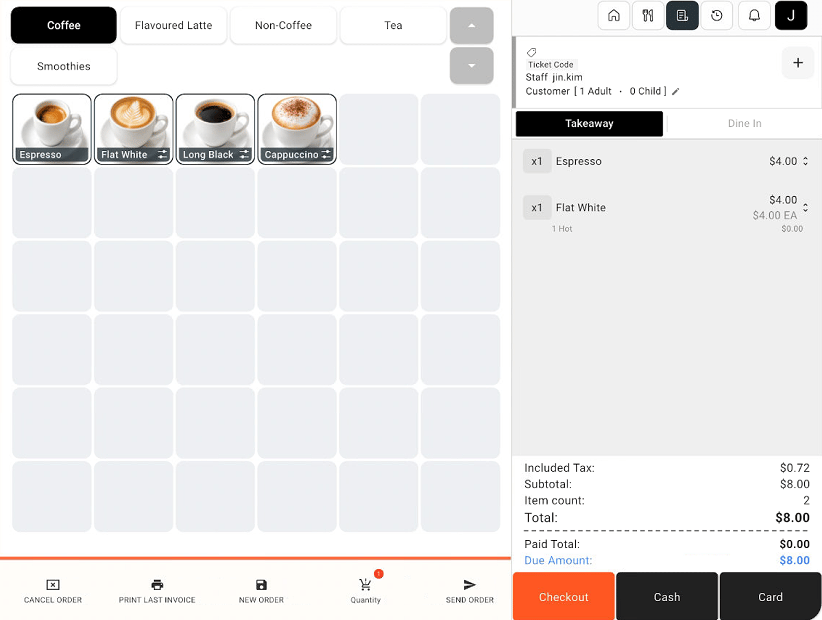 Select **Cash** or **Card** to proceed with that payment method, or select **Checkout** to review the checkout screen first.
On **Checkout**, review the summary and balance due. If an adjustment is needed, use the configured discount, cash promotion, surcharge, or custom adjustment controls available on the screen. Check the resulting total before proceeding.
Select **Cash** or **Card** to proceed with that payment method, or select **Checkout** to review the checkout screen first.
On **Checkout**, review the summary and balance due. If an adjustment is needed, use the configured discount, cash promotion, surcharge, or custom adjustment controls available on the screen. Check the resulting total before proceeding.
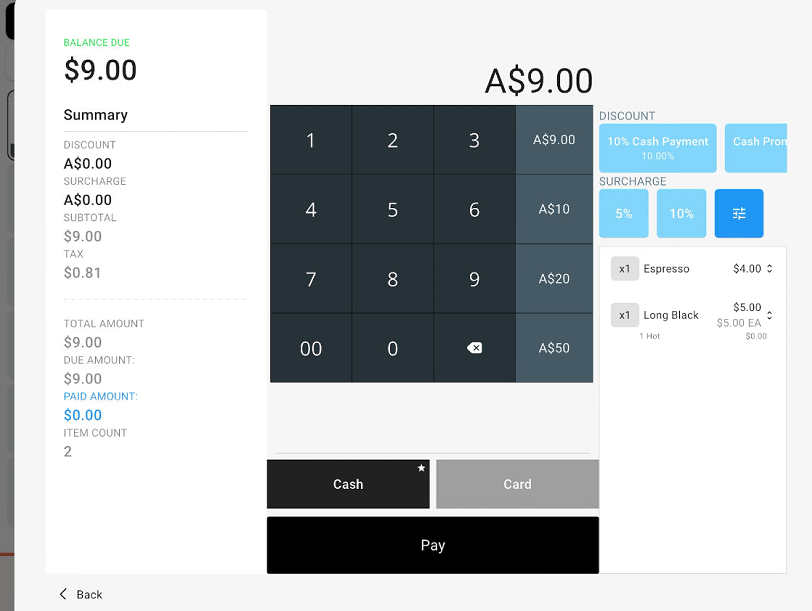 Select **Cash** or **Card** on the checkout screen, review the amount, then select **Pay**. Follow the payment prompts shown by POBLE or the connected terminal.
**Checkout** opens the order review and payment screen; it is not a separate payment method.
## Related guides
* [Apply item discounts and notes](/poble-manual/sales-payments/item-discounts-notes)
* [Tyro integration](/integrations/tyro)
* [Linkly integration](/integrations/linkly)
This documentation is built and hosted on [Mintlify](https://mintlify.com), a developer documentation platform.
Select **Cash** or **Card** on the checkout screen, review the amount, then select **Pay**. Follow the payment prompts shown by POBLE or the connected terminal.
**Checkout** opens the order review and payment screen; it is not a separate payment method.
## Related guides
* [Apply item discounts and notes](/poble-manual/sales-payments/item-discounts-notes)
* [Tyro integration](/integrations/tyro)
* [Linkly integration](/integrations/linkly)
This documentation is built and hosted on [Mintlify](https://mintlify.com), a developer documentation platform.