> ## Documentation Index
> Fetch the complete documentation index at: https://docs.poble.com.au/llms.txt
> Use this file to discover all available pages before exploring further.
# Change Quantities & Void Items
> Adjust an item’s quantity or remove the selected item from the current order.
Adjust an item’s quantity or remove the selected item from the current order.
**Where:** POS device → sales screen → item quantity
In the order panel, select the quantity beside the item name, such as **x1**.
In **Enter Quantity**, use **−**, **+**, or the keypad to enter the new quantity. Select **Change** to apply it.
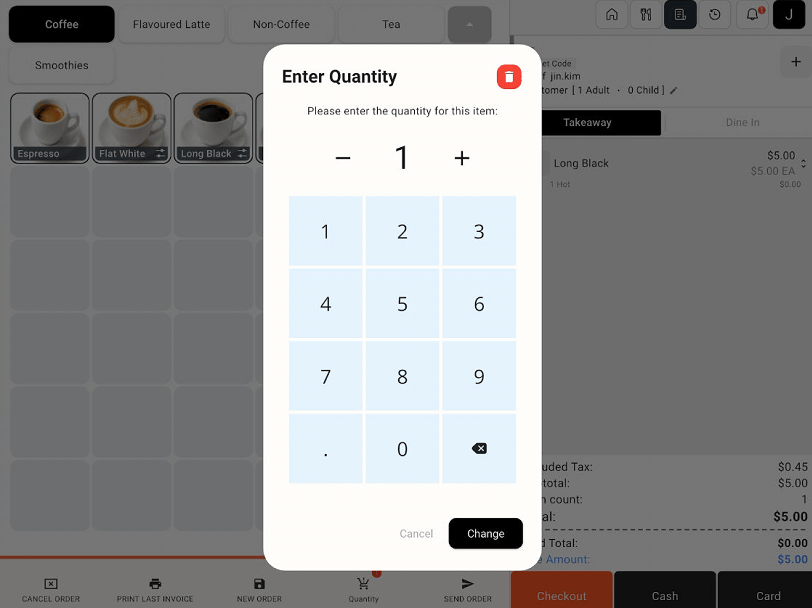 To remove the selected item, use the red delete icon in the quantity window. Follow any further prompts, then review the order and updated total.
Check the selected item before removing it. To cancel the entire order, use **Cancel Order** instead.
## Related guides
* [Cancel an order](/poble-manual/sales-payments/cancel-order)
* [Apply item discounts and notes](/poble-manual/sales-payments/item-discounts-notes)
This documentation is built and hosted on [Mintlify](https://mintlify.com), a developer documentation platform.
To remove the selected item, use the red delete icon in the quantity window. Follow any further prompts, then review the order and updated total.
Check the selected item before removing it. To cancel the entire order, use **Cancel Order** instead.
## Related guides
* [Cancel an order](/poble-manual/sales-payments/cancel-order)
* [Apply item discounts and notes](/poble-manual/sales-payments/item-discounts-notes)
This documentation is built and hosted on [Mintlify](https://mintlify.com), a developer documentation platform.