> ## Documentation Index
> Fetch the complete documentation index at: https://docs.poble.com.au/llms.txt
> Use this file to discover all available pages before exploring further.
# Cancel an Order
> Cancel the current order and record the reason.
Cancel the current order and record the reason.
**Where:** POS device → sales screen → Cancel Order
Review the current order, then select **Cancel Order** at the bottom-left of the sales screen.
In the **Cancel Order** window, explain why the order is being cancelled, such as an incorrect order or a customer request.
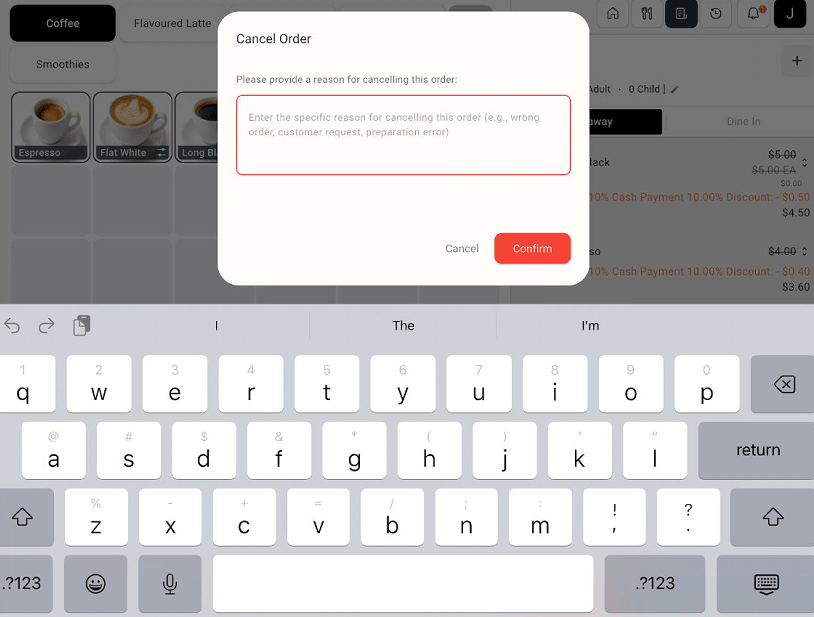 Select **Confirm** to proceed. Select **Cancel** to close the dialog without confirming the cancellation.
Use **Cancel Order** for the entire current order. To remove only one item, use the item’s quantity controls and delete icon.
## Related guides
* [Change quantities or void an item](/poble-manual/sales-payments/change-quantity-void)
This documentation is built and hosted on [Mintlify](https://mintlify.com), a developer documentation platform.
Select **Confirm** to proceed. Select **Cancel** to close the dialog without confirming the cancellation.
Use **Cancel Order** for the entire current order. To remove only one item, use the item’s quantity controls and delete icon.
## Related guides
* [Change quantities or void an item](/poble-manual/sales-payments/change-quantity-void)
This documentation is built and hosted on [Mintlify](https://mintlify.com), a developer documentation platform.