> ## Documentation Index
> Fetch the complete documentation index at: https://docs.poble.com.au/llms.txt
> Use this file to discover all available pages before exploring further.
# Create Store Menu Categories
> Create a menu category for the selected store.
Create a menu category for the selected store.
**Where:** Backoffice → selected store → POS → Menu Settings
Check that the correct store is selected, then select **Create Category**.
Enter **Name**. Add an image, **POS Display Name**, and **Description** if needed.
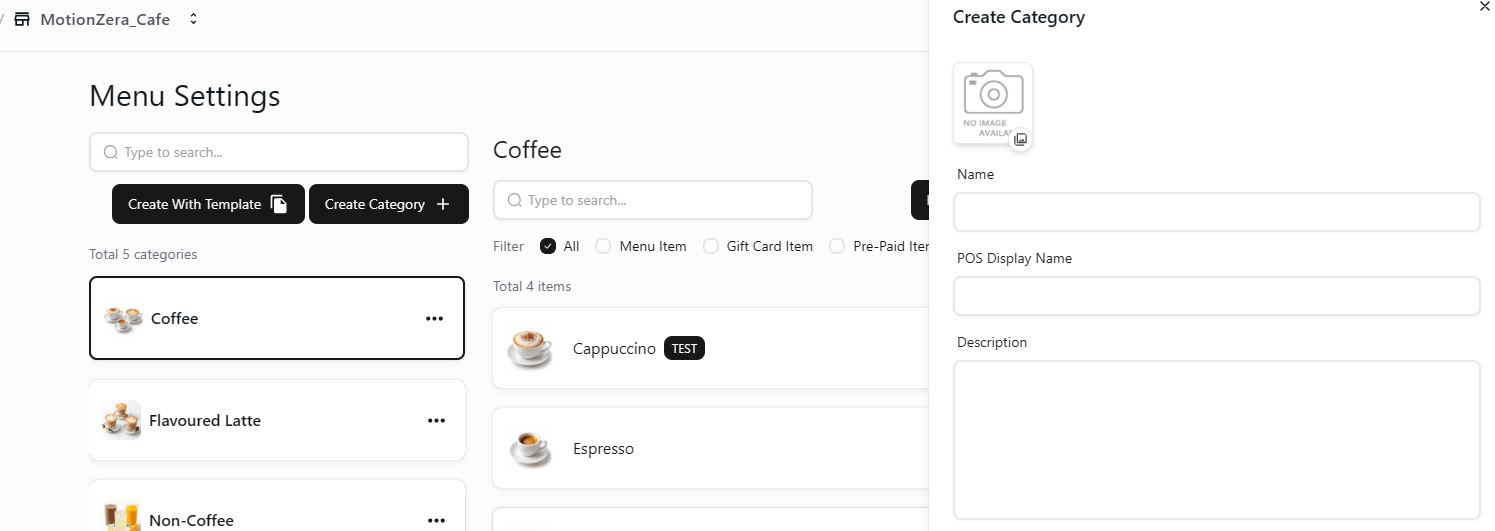 Review the details and select **Create** in the category form.
The company category form includes **Available Stores**. In the store view, check the location in the header before creating a category.
## Related guides
* [Add store menu items](/poble-manual/menu-management/store/manage-items)
This documentation is built and hosted on [Mintlify](https://mintlify.com), a developer documentation platform.
Review the details and select **Create** in the category form.
The company category form includes **Available Stores**. In the store view, check the location in the header before creating a category.
## Related guides
* [Add store menu items](/poble-manual/menu-management/store/manage-items)
This documentation is built and hosted on [Mintlify](https://mintlify.com), a developer documentation platform.