> ## Documentation Index
> Fetch the complete documentation index at: https://docs.poble.com.au/llms.txt
> Use this file to discover all available pages before exploring further.
# Set Up Printer Mapping
> Manage printer groups for routing menu items to the appropriate printers.
Manage printer groups for routing menu items to the appropriate printers.
**Where:** POS device → Menu Management → Menu Setup → Printer Mapping
In **Menu Setup**, select **Printer Mapping** to open **Manage Printer Groups**.
Select **Create Group**. In the **Create Printer Category** form, enter **Name** and **Description**.
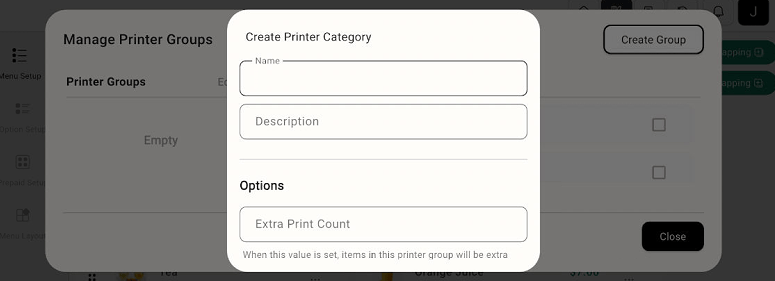 Review **Extra Print Count** if additional prints are needed. Complete the group using the controls shown in the form.
Review the available group and assignment controls so menu items are routed to the intended printers.
Printer Mapping manages printer groups and assignments. Use the printer configuration available in your POS for hardware and connection settings.
## Related guides
* [Create POS menu items](/poble-manual/menu-management/pos/manage-items)
This documentation is built and hosted on [Mintlify](https://mintlify.com), a developer documentation platform.
Review **Extra Print Count** if additional prints are needed. Complete the group using the controls shown in the form.
Review the available group and assignment controls so menu items are routed to the intended printers.
Printer Mapping manages printer groups and assignments. Use the printer configuration available in your POS for hardware and connection settings.
## Related guides
* [Create POS menu items](/poble-manual/menu-management/pos/manage-items)
This documentation is built and hosted on [Mintlify](https://mintlify.com), a developer documentation platform.