> ## Documentation Index
> Fetch the complete documentation index at: https://docs.poble.com.au/llms.txt
> Use this file to discover all available pages before exploring further.
# Add & Edit Company Menu Items
> Create company menu items and update their names, prices, categories, and other details.
Create company menu items and update their names, prices, categories, and other details.
**Where:** Backoffice → company view → POS → Menu Settings
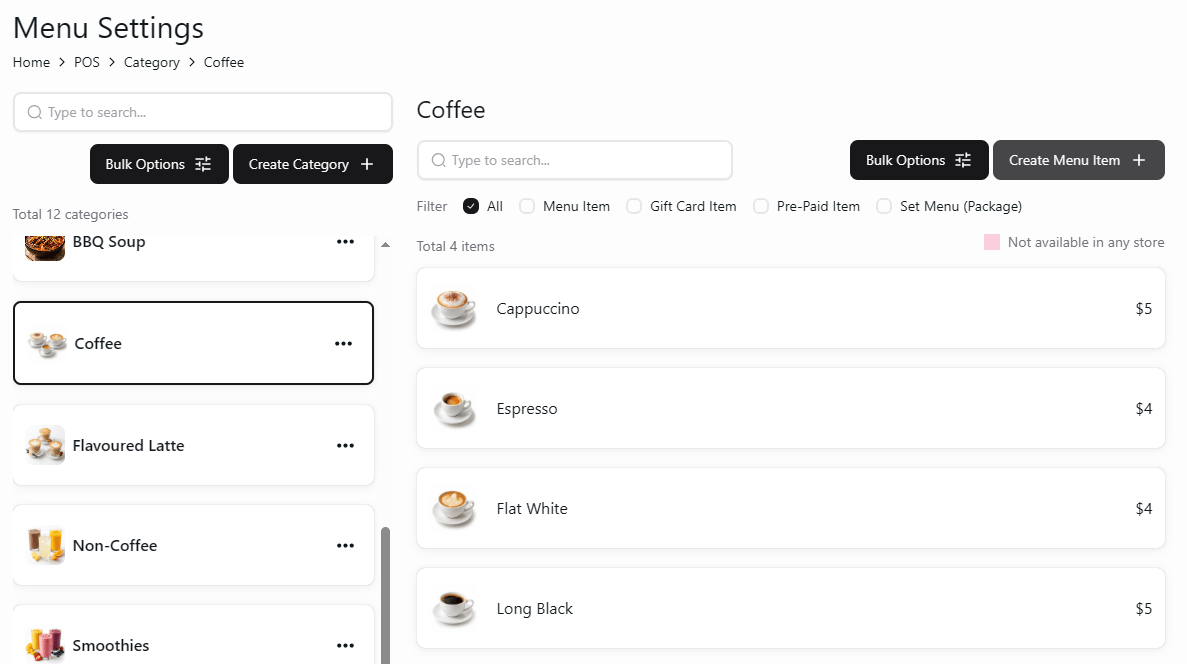
Choose a category from the list. Its menu items appear beside it. Select **Create Menu Item** to add an item.
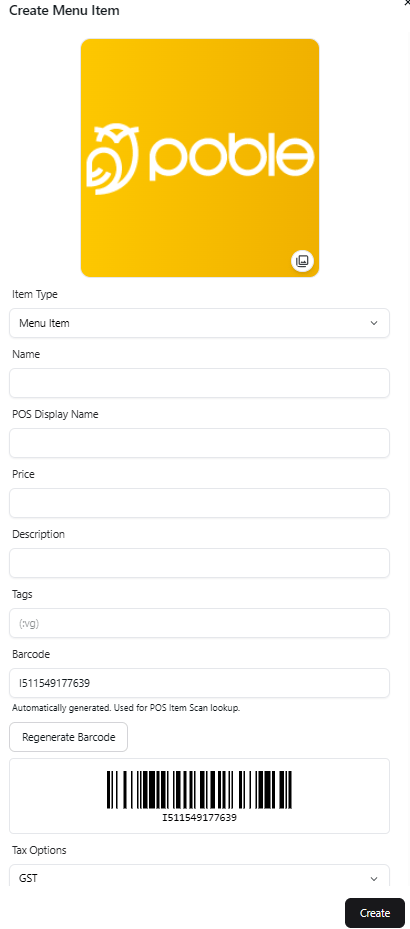
 Choose **Item Type** and enter **Name** and **Price**. Add an image, **POS Display Name**, **Description**, **Tags**, and barcode details as needed. Review **Tax Options**, then select **Create**.
 Open the item from its category. Update the relevant fields. Use **Change Category** when you need to move it to another category, then apply your changes using the page controls.
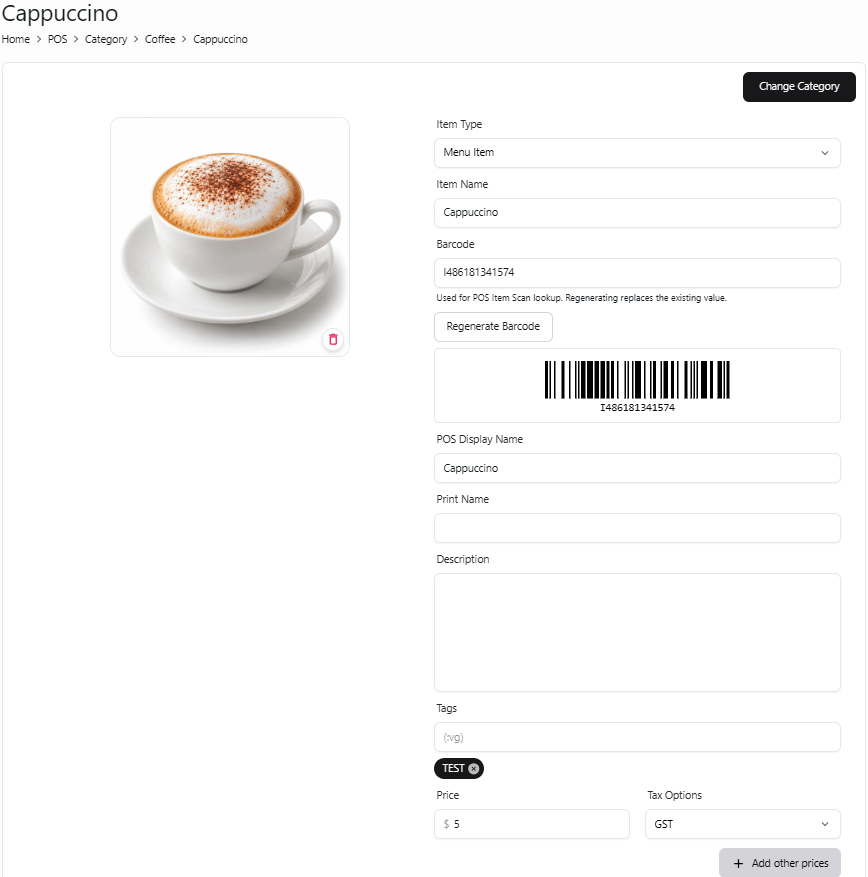 Field labels can differ between the create and edit screens. Review the selected item and its price before applying changes.
## Related guides
* [Create item options](/poble-manual/menu-management/company/create-options)
* [Manage store items](/poble-manual/menu-management/store/manage-items)
This documentation is built and hosted on [Mintlify](https://mintlify.com), a developer documentation platform.
Field labels can differ between the create and edit screens. Review the selected item and its price before applying changes.
## Related guides
* [Create item options](/poble-manual/menu-management/company/create-options)
* [Manage store items](/poble-manual/menu-management/store/manage-items)
This documentation is built and hosted on [Mintlify](https://mintlify.com), a developer documentation platform.