> ## Documentation Index
> Fetch the complete documentation index at: https://docs.poble.com.au/llms.txt
> Use this file to discover all available pages before exploring further.
# Create & Manage Item Options
> Create option groups and choices for sizes, flavours, and other item customisations.
Create option groups and choices for sizes, flavours, and other item customisations.
**Where:** Backoffice → company view → POS → Item Options
Expand **POS** and select **Item Options**. The page heading is **Options**.
Select **Create Option** and enter a group name, such as **Flavoured** or **Hot / Iced**.
Select the group, then select **Add New Item** to add choices such as Vanilla, Caramel, or Hazelnut. Set an additional price for each choice if required.
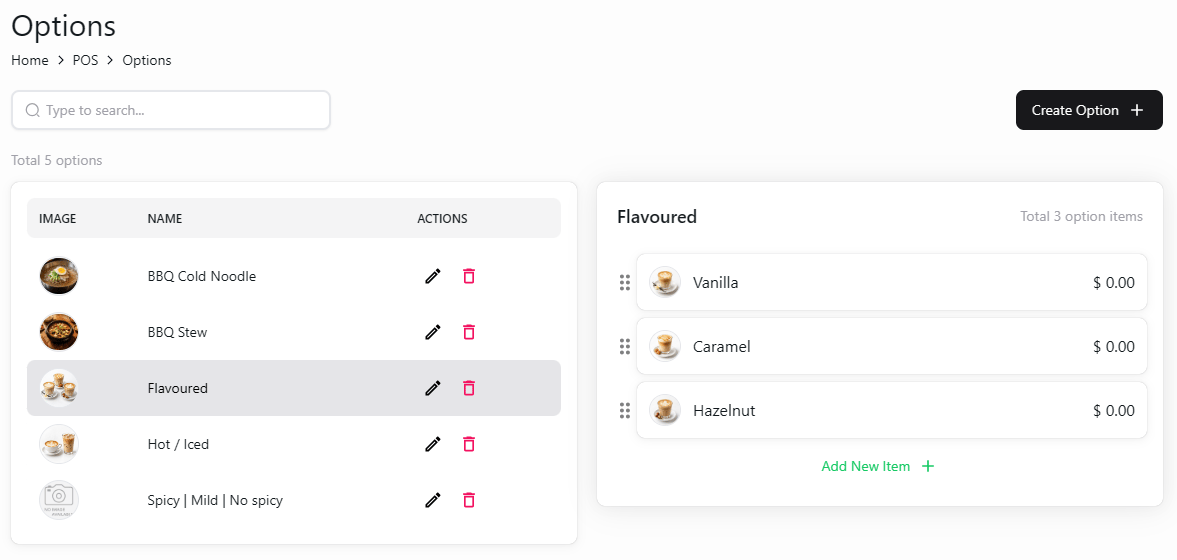 Use the edit icon beside an option group to update it. Review the group and its choices after making changes.
Creating an option group and assigning it to a menu item are separate tasks. Use **Option Mapping** to connect options to items.
## Related guides
* [Assign options to items](/poble-manual/menu-management/configuration/option-mapping)
* [Manage options on the POS](/poble-manual/menu-management/pos/manage-options)
This documentation is built and hosted on [Mintlify](https://mintlify.com), a developer documentation platform.
Use the edit icon beside an option group to update it. Review the group and its choices after making changes.
Creating an option group and assigning it to a menu item are separate tasks. Use **Option Mapping** to connect options to items.
## Related guides
* [Assign options to items](/poble-manual/menu-management/configuration/option-mapping)
* [Manage options on the POS](/poble-manual/menu-management/pos/manage-options)
This documentation is built and hosted on [Mintlify](https://mintlify.com), a developer documentation platform.