> ## Documentation Index
> Fetch the complete documentation index at: https://docs.poble.com.au/llms.txt
> Use this file to discover all available pages before exploring further.
# Enter Payment Details & Start Trial
> Complete billing setup and start the trial shown at checkout.
Complete the payment screen to finish account setup. The Notion manual describes a **30-day free trial**; review the offer and terms shown in your checkout before starting.
## Enter Payment Details & Start Trial
Check the selected plan, add-ons, **Total after trial**, and **Total due today**.
Complete the contact information and card fields, including card number, expiry date, CVC, and cardholder name.
Complete the billing address and the business or ABN information requested by the payment form.
Check your details and the displayed charges, then select **Start trial**.
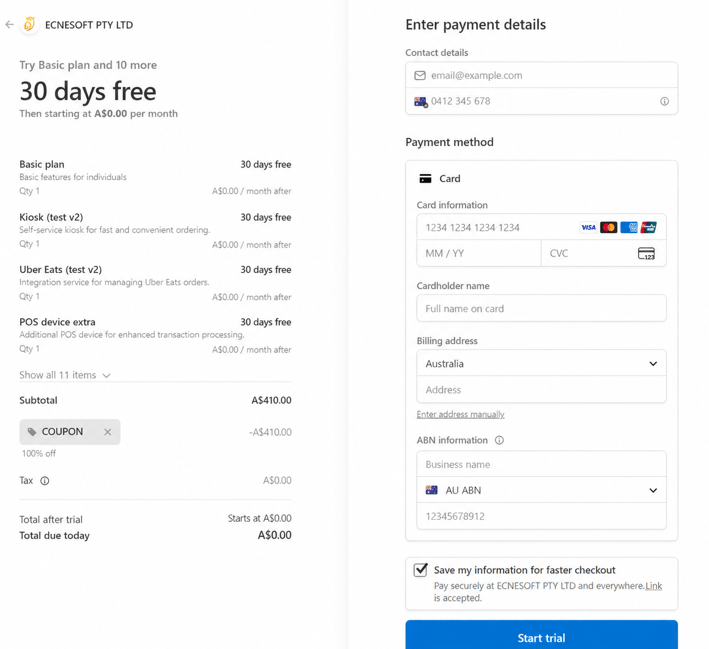 The trial duration and charges displayed at checkout apply to your signup. Review those details even if they differ from the example screenshot.
## Related guides
* [Manage company settings](/poble-manual/company-settings/overview)
This documentation is built and hosted on [Mintlify](https://mintlify.com), a developer documentation platform.
The trial duration and charges displayed at checkout apply to your signup. Review those details even if they differ from the example screenshot.
## Related guides
* [Manage company settings](/poble-manual/company-settings/overview)
This documentation is built and hosted on [Mintlify](https://mintlify.com), a developer documentation platform.