> ## Documentation Index
> Fetch the complete documentation index at: https://docs.poble.com.au/llms.txt
> Use this file to discover all available pages before exploring further.
# Create Your Poble Account
> Enter your company and business details to begin setting up POBLE.
Begin with the **Create company** screen in the POBLE setup flow. Have your business details and primary contact information ready.
## Create Your Poble Account
Complete **Australian Business Number (ABN)**, **Business Name**, and **Business Id**.
Use an identifier that matches your business. The setup screen explains that this is your company’s unique identifier and forms the subdomain for its membership URL.
Enter **Address**, **City**, **State**, **Postcode**, **Primary Email**, and **Primary Contact**.
Review the **Terms and Conditions**. If you agree, select the agreement checkbox, then select **Next**.
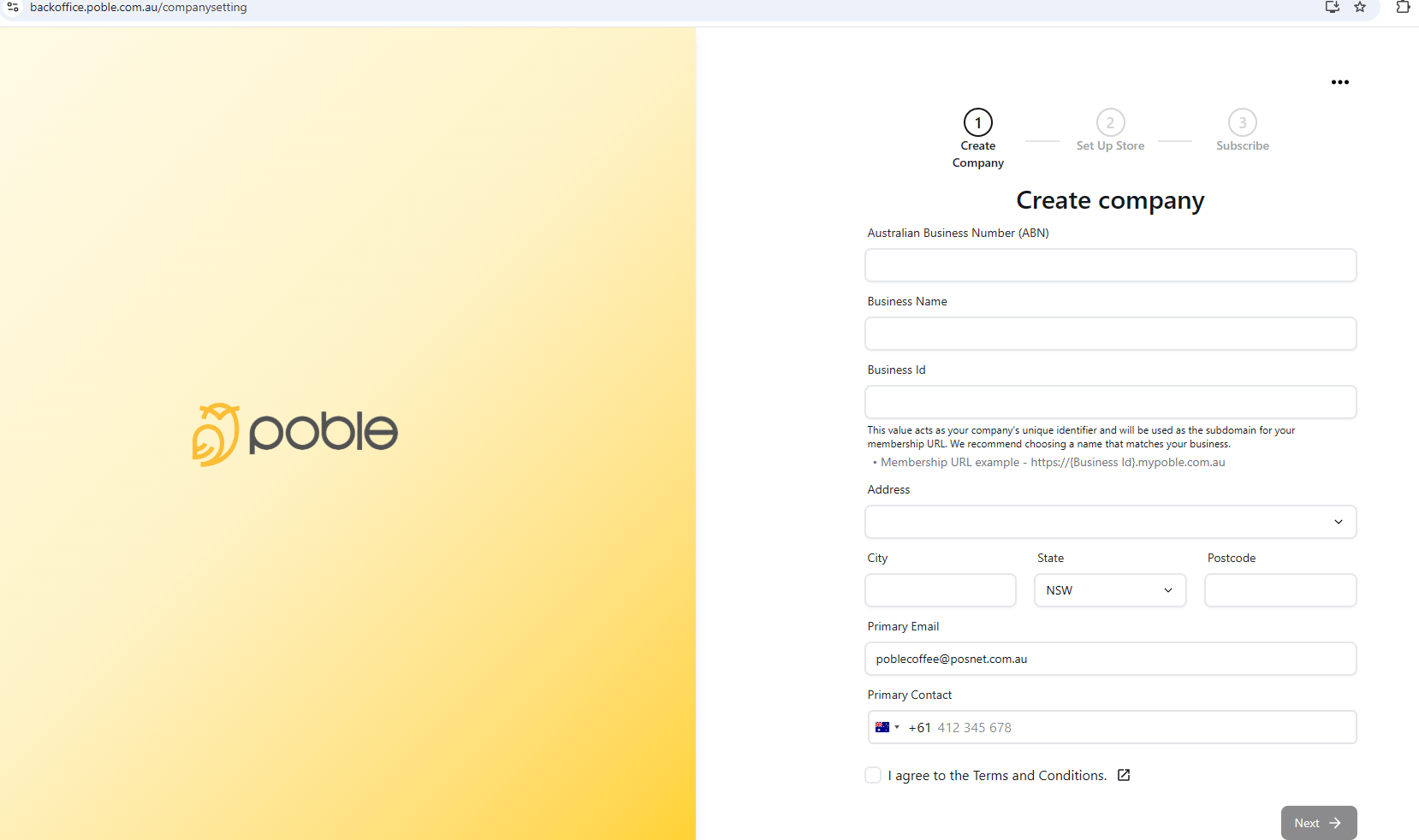 Check the Business Id carefully before continuing, because customers may see it in your membership URL.
## Related guides
* [Set up your first store](/poble-manual/getting-started/set-up-your-store)
This documentation is built and hosted on [Mintlify](https://mintlify.com), a developer documentation platform.
Check the Business Id carefully before continuing, because customers may see it in your membership URL.
## Related guides
* [Set up your first store](/poble-manual/getting-started/set-up-your-store)
This documentation is built and hosted on [Mintlify](https://mintlify.com), a developer documentation platform.