> ## Documentation Index
> Fetch the complete documentation index at: https://docs.poble.com.au/llms.txt
> Use this file to discover all available pages before exploring further.
# Set Up Stripe Online Payments
> Start Stripe connected-account setup for online payments.
Set up a Stripe connected account from **Company Settings** to accept online payments.
## Set Up Stripe Online Payments
Select **Company Settings**, then open the **Stripe** tab.
Under **Stripe Connected Account**, select **Create Stripe Account**. The source example shows an **Action required** status before setup.
Follow the account setup instructions and provide the details requested in that flow.
Return to the **Stripe** tab and check the connected-account status. Complete any actions requested on screen.
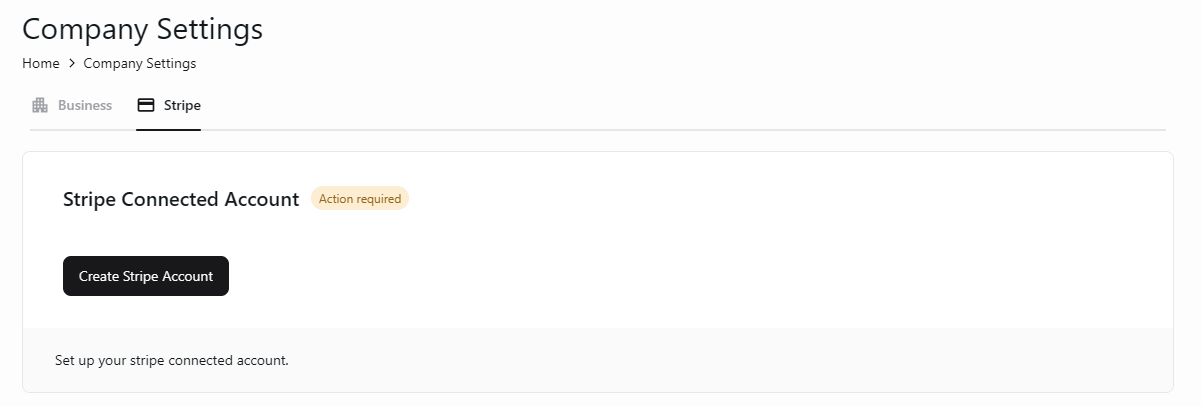 Follow the status and instructions shown for your account. The source illustrates the starting screen, rather than the complete Stripe onboarding flow.
## Related guides
* [Update company details](/poble-manual/company-settings/update-company-details)
This documentation is built and hosted on [Mintlify](https://mintlify.com), a developer documentation platform.
Follow the status and instructions shown for your account. The source illustrates the starting screen, rather than the complete Stripe onboarding flow.
## Related guides
* [Update company details](/poble-manual/company-settings/update-company-details)
This documentation is built and hosted on [Mintlify](https://mintlify.com), a developer documentation platform.