> ## Documentation Index
> Fetch the complete documentation index at: https://docs.poble.com.au/llms.txt
> Use this file to discover all available pages before exploring further.
# Set Role Permissions
> Configure the actions each staff role can perform.
Use **Roles** to choose which actions staff can perform in each permission category.
## Set Role Permissions
Select **Roles** from the company sidebar.
Open the role you want to configure. The source screen shows **Franchise Manager**, **Shop Manager**, **Shop Owner**, and **Staff**.
Review each permission category and select the required **View**, **Edit**, and **Delete** actions where available. The source example includes employee, menu management, royalty management, and sales report categories.
Select **Save** after reviewing your changes.
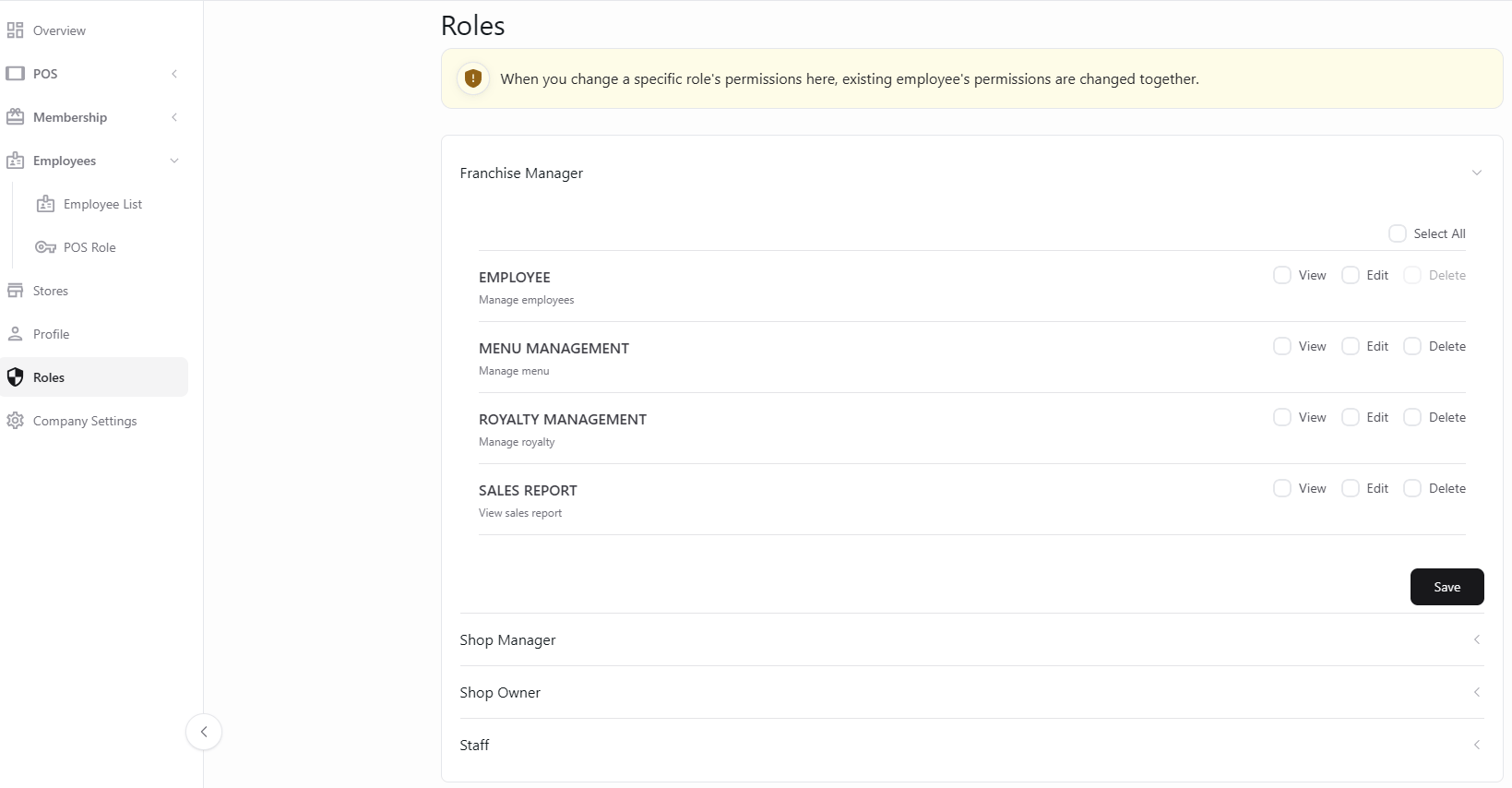 Changing a role’s permissions also changes the permissions of existing employees with that role, as stated in the Roles screen. Review the impact before saving.
## Related guides
* [Manage permissions](/poble-manual/company-settings/manage-permissions)
This documentation is built and hosted on [Mintlify](https://mintlify.com), a developer documentation platform.
Changing a role’s permissions also changes the permissions of existing employees with that role, as stated in the Roles screen. Review the impact before saving.
## Related guides
* [Manage permissions](/poble-manual/company-settings/manage-permissions)
This documentation is built and hosted on [Mintlify](https://mintlify.com), a developer documentation platform.