> ## Documentation Index
> Fetch the complete documentation index at: https://docs.poble.com.au/llms.txt
> Use this file to discover all available pages before exploring further.
# Manage Stores
> View your company’s stores and add another location.
Use **Stores** in the company view to see locations linked to your business.
## Manage Stores
Select **Stores** from the company sidebar.
Use the **Active** tab to view active stores. Use the search field to locate a store by name. The source screen also shows **Brand**, **All**, and **Inactive** tabs.
Select **Add Store** and enter the details requested for the additional location.
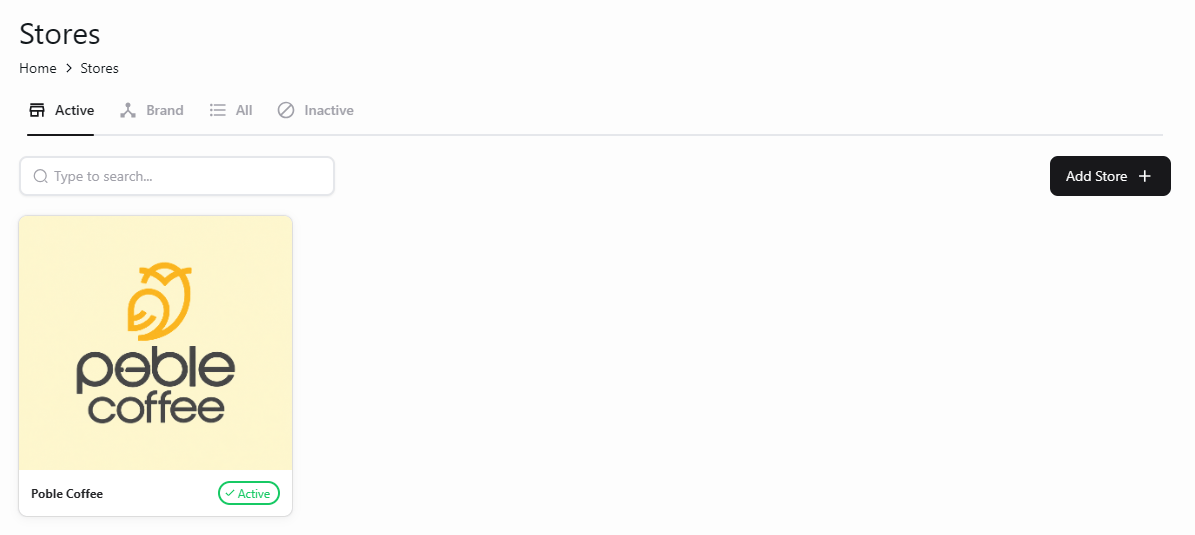 Check the selected company before adding a store so the location is linked to the correct business.
## Related guides
* [Set up your first store](/poble-manual/getting-started/set-up-your-store)
* [Store settings](/poble-manual/store-settings/overview)
This documentation is built and hosted on [Mintlify](https://mintlify.com), a developer documentation platform.
Check the selected company before adding a store so the location is linked to the correct business.
## Related guides
* [Set up your first store](/poble-manual/getting-started/set-up-your-store)
* [Store settings](/poble-manual/store-settings/overview)
This documentation is built and hosted on [Mintlify](https://mintlify.com), a developer documentation platform.