> ## Documentation Index
> Fetch the complete documentation index at: https://docs.poble.com.au/llms.txt
> Use this file to discover all available pages before exploring further.
# Change Admin PIN Code
> Update the POS PIN for a store from your profile.
Change your admin POS PIN from **Profile**. The source screen lists a PIN field beside each accessible store.
## Change Admin PIN Code
Select **Profile**, then open the **Accessible Stores** tab.
Find the relevant store and enter your new PIN in **Pos Pin Code**.
Select **Update** beside that store.
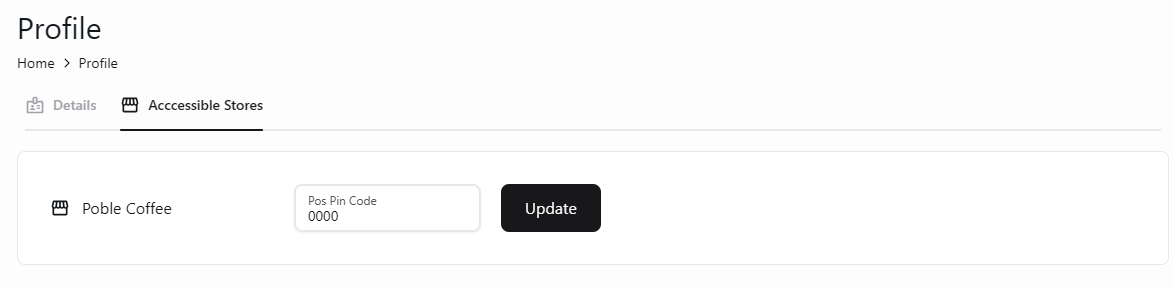 Keep your PIN private and avoid easy-to-guess values such as the example shown in the screenshot.
## Related guides
* [Manage your admin profile](/poble-manual/company-settings/manage-admin-profiles)
This documentation is built and hosted on [Mintlify](https://mintlify.com), a developer documentation platform.
Keep your PIN private and avoid easy-to-guess values such as the example shown in the screenshot.
## Related guides
* [Manage your admin profile](/poble-manual/company-settings/manage-admin-profiles)
This documentation is built and hosted on [Mintlify](https://mintlify.com), a developer documentation platform.