> ## Documentation Index
> Fetch the complete documentation index at: https://docs.poble.com.au/llms.txt
> Use this file to discover all available pages before exploring further.
# Add Admins & Manage Employees
> Add administrators and view staff from Employees.
Use the employee list to view staff and begin adding another administrator.
## Add Admins & Manage Employees
Select **Employees**, then **Employee List**.
Use the search field or **Add Filter** to find a staff member. Review the **Name**, **Email**, **Backoffice Role**, and **Status** columns.
Select **Add Employee**. Complete the staff details requested in the form and choose the administrator role when adding an admin.
Check that the person’s role matches the access they need. Use the permission guides below when configuring staff access.
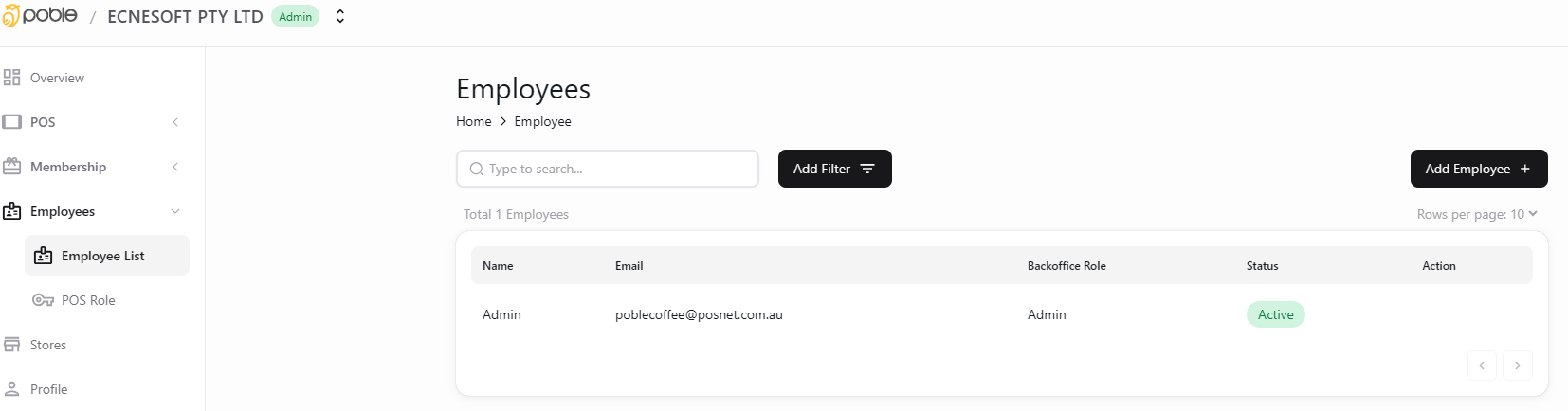 Administrator and employee access should match each person’s responsibilities.
## Related guides
* [Manage permissions](/poble-manual/company-settings/manage-permissions)
* [Set role permissions](/poble-manual/company-settings/set-role-permissions)
This documentation is built and hosted on [Mintlify](https://mintlify.com), a developer documentation platform.
Administrator and employee access should match each person’s responsibilities.
## Related guides
* [Manage permissions](/poble-manual/company-settings/manage-permissions)
* [Set role permissions](/poble-manual/company-settings/set-role-permissions)
This documentation is built and hosted on [Mintlify](https://mintlify.com), a developer documentation platform.