> ## Documentation Index
> Fetch the complete documentation index at: https://docs.poble.com.au/llms.txt
> Use this file to discover all available pages before exploring further.
# 체크아웃 및 결제
> 주문을 확인하고 알맞은 결제 버튼을 선택합니다.
주문을 확인하고 알맞은 결제 버튼을 선택합니다.
**경로:** POS 기기 → 판매 화면 → Checkout / Cash / Card
주문 패널의 상품, 옵션, 수량, 할인과 합계를 확인하세요.
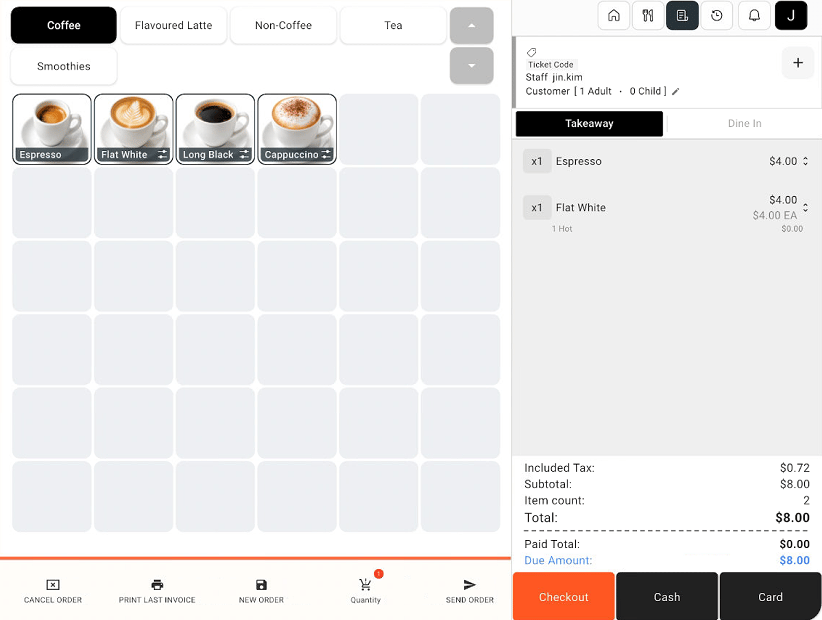 **Cash** 또는 **Card**로 해당 결제를 진행하거나, 먼저 체크아웃 화면을 보려면 **Checkout**을 선택하세요.
**Checkout**에서 요약과 미결제 금액을 확인하세요. 조정이 필요하면 화면에 제공되는 할인, 현금 프로모션, 추가요금 또는 사용자 지정 조정 버튼을 사용하세요. 계속하기 전에 최종 합계를 확인하세요.
**Cash** 또는 **Card**로 해당 결제를 진행하거나, 먼저 체크아웃 화면을 보려면 **Checkout**을 선택하세요.
**Checkout**에서 요약과 미결제 금액을 확인하세요. 조정이 필요하면 화면에 제공되는 할인, 현금 프로모션, 추가요금 또는 사용자 지정 조정 버튼을 사용하세요. 계속하기 전에 최종 합계를 확인하세요.
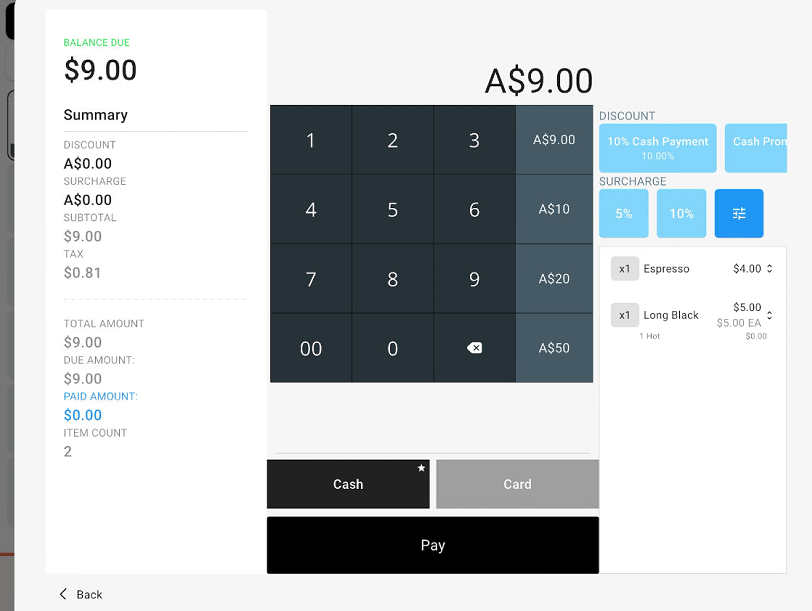 체크아웃 화면에서 **Cash** 또는 **Card**를 선택하고 금액을 확인한 뒤 **Pay**를 누르세요. POBLE이나 연결된 단말기의 결제 안내를 따르세요.
**Checkout**은 주문 확인 및 결제 화면을 여는 버튼이며 별도의 결제 수단은 아닙니다.
## 관련 가이드
* [상품 할인 적용 및 메모 추가](/ko/poble-manual/sales-payments/item-discounts-notes)
* [Tyro 연동](/ko/integrations/tyro)
* [Linkly 연동](/ko/integrations/linkly)
This documentation is built and hosted on [Mintlify](https://mintlify.com), a developer documentation platform.
체크아웃 화면에서 **Cash** 또는 **Card**를 선택하고 금액을 확인한 뒤 **Pay**를 누르세요. POBLE이나 연결된 단말기의 결제 안내를 따르세요.
**Checkout**은 주문 확인 및 결제 화면을 여는 버튼이며 별도의 결제 수단은 아닙니다.
## 관련 가이드
* [상품 할인 적용 및 메모 추가](/ko/poble-manual/sales-payments/item-discounts-notes)
* [Tyro 연동](/ko/integrations/tyro)
* [Linkly 연동](/ko/integrations/linkly)
This documentation is built and hosted on [Mintlify](https://mintlify.com), a developer documentation platform.