> ## Documentation Index
> Fetch the complete documentation index at: https://docs.poble.com.au/llms.txt
> Use this file to discover all available pages before exploring further.
# 상품에 옵션 연결
> 고객이 주문을 맞춤 구성할 수 있도록 옵션 그룹을 상품에 연결합니다.
고객이 주문을 맞춤 구성할 수 있도록 옵션 그룹을 상품에 연결합니다.
**경로:** POS 기기 → Menu Management → Menu Setup → Option Mapping
**Menu Setup**에서 **Option Mapping**을 선택해 **Manage Item Options**를 여세요.
**Item Category**를 선택한 뒤 설정할 상품을 선택하세요.
필요한 **Option Groups**를 선택하세요. **Selected Option Groups**를 확인하고 드래그해 순서를 바꾸세요.
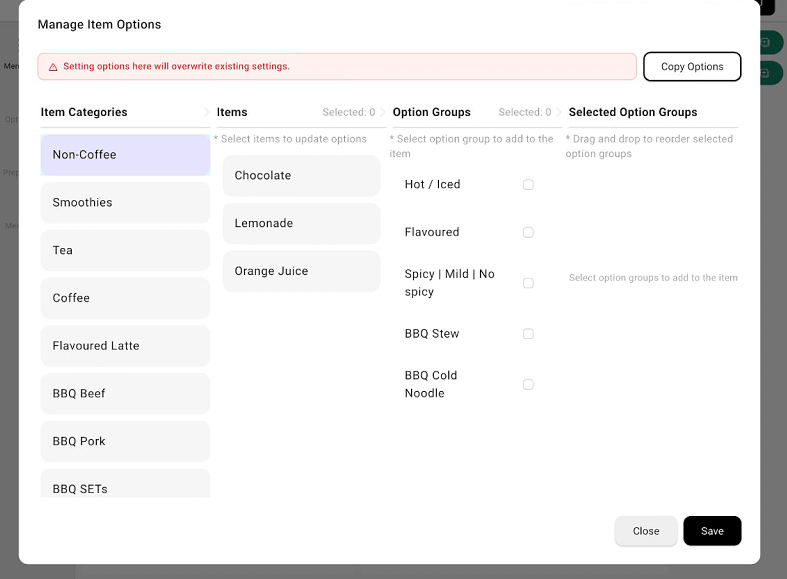 선택한 상품과 옵션 그룹을 확인하고 **Save**를 선택하세요.
이 화면에서 옵션을 설정하면 기존 설정을 덮어쓴다고 안내되어 있습니다. 저장 전에 선택한 상품과 현재 옵션을 확인하세요.
## 관련 가이드
* [상품 옵션 생성 및 관리](/ko/poble-manual/menu-management/company/create-options)
* [POS에서 상품 옵션 관리](/ko/poble-manual/menu-management/pos/manage-options)
This documentation is built and hosted on [Mintlify](https://mintlify.com), a developer documentation platform.
선택한 상품과 옵션 그룹을 확인하고 **Save**를 선택하세요.
이 화면에서 옵션을 설정하면 기존 설정을 덮어쓴다고 안내되어 있습니다. 저장 전에 선택한 상품과 현재 옵션을 확인하세요.
## 관련 가이드
* [상품 옵션 생성 및 관리](/ko/poble-manual/menu-management/company/create-options)
* [POS에서 상품 옵션 관리](/ko/poble-manual/menu-management/pos/manage-options)
This documentation is built and hosted on [Mintlify](https://mintlify.com), a developer documentation platform.